

Media slides
A Media slide shows one image or video, full screen or framed. To use an image or video behind text instead, set it as the slide’s background. To place one alongside other content, add it as a layer.
Add media slides
Section titled “Add media slides”- Click Media in the Add row (⇧⌘M) to open the Media picker. Choose one or more items and click Add slide (or Add 3 slides). Each item becomes its own slide.
- Or drag image and video files from Finder, or items from the Photos app, onto the slide list.
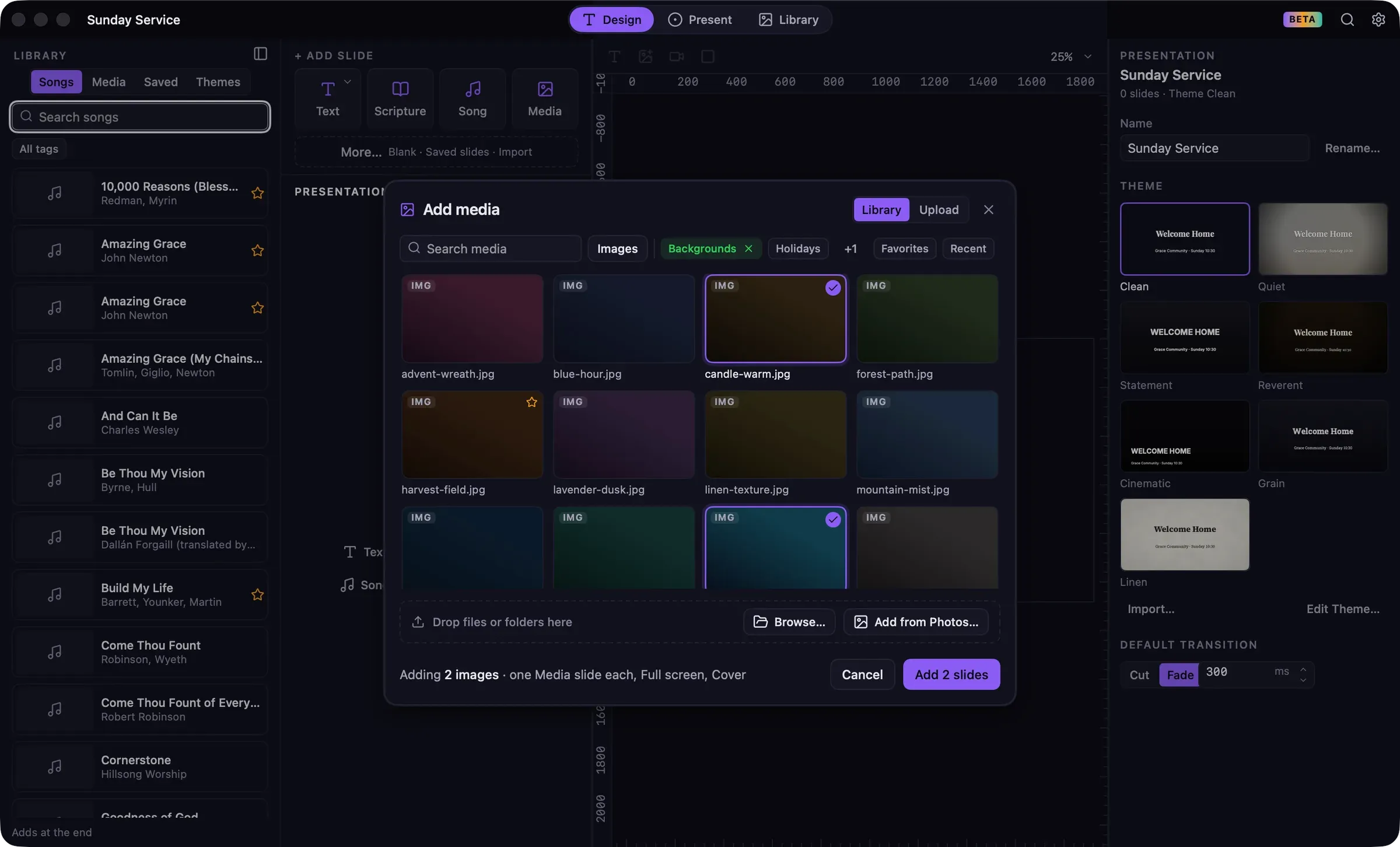
The Media picker
Section titled “The Media picker”- Library shows the media already in your Library. Search by name or tag, filter with Favorites, Recent, tags, or the type menu (Images, Videos, All media). Double-click an item to choose it straight away.
- Upload adds new files: drop files or folders onto it, click Browse…, or click Add from Photos….
Media added from either tab is kept in your Library for next time.
Select a Media slide and choose Fit in the inspector:
- Cover fills the screen, trimming the edges if the shape doesn’t match.
- Contain shows the whole image or video, with the background around it.
- Fill stretches it to the screen’s shape.
Video playback
Section titled “Video playback”For a video, the inspector also shows how it plays during the service:
| Option | Choices |
|---|---|
| When the slide goes live | Play automatically, or Wait for Play, so you start it from Present |
| Loop | On or off |
| Sound | On or off |
| When it ends | Hold last frame, Show background, or Advance to next slide |
| Speed | 0.5× to 2× |
See Video during a service for the controls in Present.
Replace media
Section titled “Replace media”To swap an image or video for another one, right-click the slide and choose Replace Media…, or click Replace… in the inspector or the canvas toolbar. If the same item is used on other slides, choose This slide only or Everywhere it’s used.
Missing media
Section titled “Missing media”Saved presentations include copies of their media. If a media file is missing, the slide shows “Missing: sunrise.mp4” and a bar below the canvas offers Replace… and Remove.
Before going live, Guidepost warns you about missing media and lists the slides affected, with Fix now and Go Live anyway.
Supported formats
Section titled “Supported formats”- Images: JPEG, PNG, HEIC, WebP, GIF and TIFF.
- Video: MOV, MP4 and M4V, including H.264, HEVC, ProRes, HDR, and video with a transparent background.
- Converted automatically: WebM, MKV, AVI, WMV, FLV and OGV videos are converted in the background when you import them. Progress shows in the title bar.
Audio files can’t be added yet. See Media in the Library for more on importing.