

Blank, Logo, Freeze and Clear text
The four holds temporarily change what the audience screens show. Use the buttons above NEXT on the control rack or the keys listed below.
| Hold | What the audience sees | Key |
|---|---|---|
| Blank | A black screen. | B |
| Logo | Your church logo on its background color. | L |
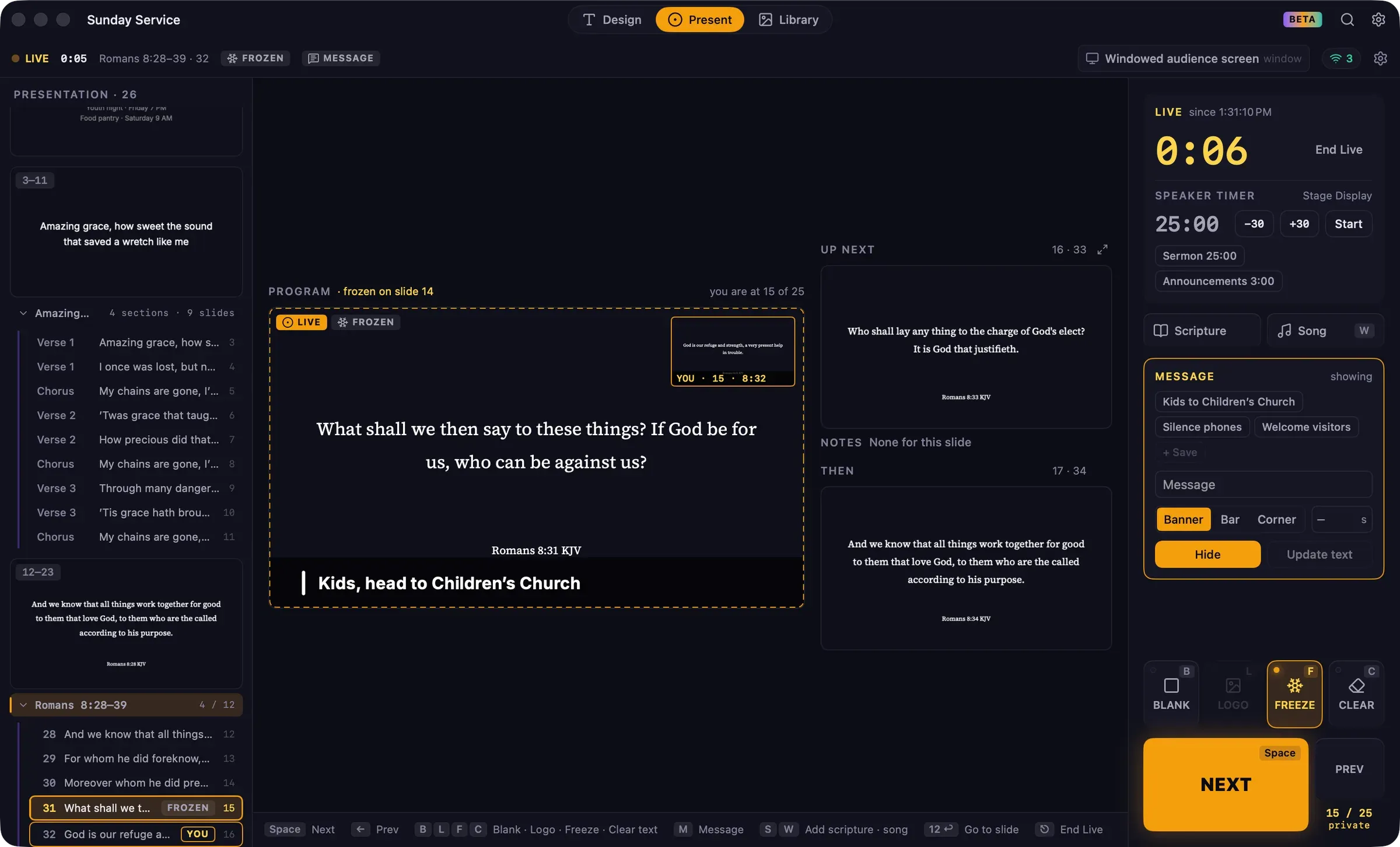
| Freeze | The current slide stays up while you move ahead privately. | F |
| Clear text | The slide’s background only, with text and layers hidden. | C |
- Only one hold is active at a time. Choosing another replaces it.
- Press the active hold again, or click its button, to return to the slide.
- Holds apply to every audience screen and to network viewers.
- Moving to another slide doesn’t end a hold. Use it to line up the next slide while the screen is blank.
- Holds are available while live. The status bar shows a badge for the active hold, such as BLANK.
Blank from anywhere
Section titled “Blank from anywhere”Blank also has a shortcut that works in every workspace while live: ⇧⌘B. It’s also on the Live bar. The other hold keys work only in Present.
Logo needs a logo image. Add one in Settings › Screens › Logo and idle screen: click Choose…, pick an image, and choose a Logo background color. Until a logo is set, the Logo button is unavailable; clicking it opens that setting.
Freeze
Section titled “Freeze”Freeze is for fixing something without the audience seeing it. While frozen:
- the audience screens keep showing the frozen slide;
- you can move through slides, or edit in Design, privately;
- the Program monitor keeps showing the frozen slide with a dashed amber outline, and a small inset shows where you actually are;
- the Stage Display follows you, not the frozen slide, so the band can see what’s coming.
When you leave Freeze, the audience screens fade to the slide you’re on.
Holds and the message
Section titled “Holds and the message”A message stays visible over Freeze and Clear text, but is hidden under Blank and Logo, so Blank always means a black screen.