

The Screens panel
Use the Screens panel to choose audience screens, set up a Stage Display and turn on network viewers.
Open the panel from:
- Presentation › Screens…
- the screens summary in the Present status bar
- Settings › Screens
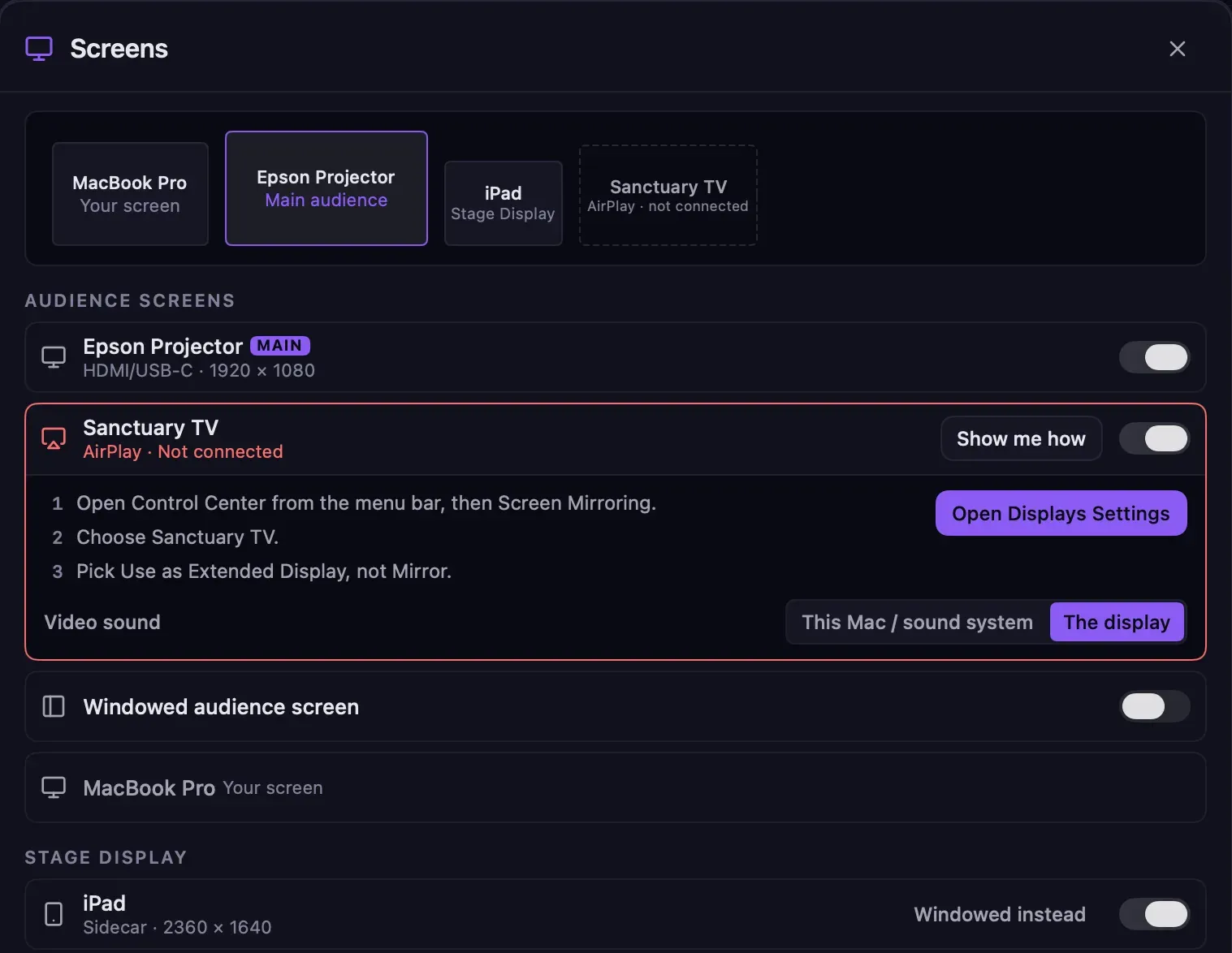
Audience screens
Section titled “Audience screens”Each connected display is listed with its name, connection (HDMI/USB-C, AirPlay, Sidecar or Built-in) and resolution. The picture at the top shows how your displays are arranged and what each one is used for.
- Turn on the switch beside a display to use it as an audience screen.
- The first audience screen is the main screen. Any others show the same thing. To change which one is main, click Make main.
- Your own display, the one with the Guidepost window, is marked Your screen and can’t be used as a full-screen audience screen, so the congregation never sees your controls.
Windowed audience screen
Section titled “Windowed audience screen”Turn on Windowed audience screen to show the slides in a resizable window instead of full screen. Use it when you have only one display, or to preview what the audience will see. You can drag the window onto any display.
When the audience screens appear
Section titled “When the audience screens appear”Full-screen audience screens open when you go live or start a countdown, and close when you end live. They cover the whole display, above the menu bar and Dock, and never show your desktop, menus or notifications while open.
When nothing is live, the windowed audience screen and network viewers show the idle screen: your logo, black, or a faint Guidepost wordmark. Choose which in Settings › Screens › Logo and idle screen.
Stage Display
Section titled “Stage Display”Under Stage Display, turn on a display to use it for the band and speaker. A display can’t be both an audience screen and the Stage Display. To show the Stage Display in a window instead, choose Windowed Stage Display (or Windowed instead on the display’s row).
The Stage Display opens as soon as you choose it, before you go live, so the band can see it during setup. See Stage Display.
Network viewers
Section titled “Network viewers”Turn on Let devices on this network watch to let phones, tablets and TVs on the same network follow the service in a web browser. See Network viewers.
Before and during a service
Section titled “Before and during a service”- Before going live, changes are staged for Go Live. The panel shows Staged for Go Live.
- While live, changes apply immediately. If a change moves the main audience screen to another display, Guidepost asks first, because the screen goes dark for about a second while it moves.
Guidepost remembers your setup
Section titled “Guidepost remembers your setup”The setup is remembered by each screen’s name, such as “Epson Projector” or “Sanctuary TV”. Next week, when the same screens are connected, the same setup is restored automatically.
A remembered screen that isn’t connected stays in the list, marked Not connected, so you know what’s missing.
When a screen disconnects during a service
Section titled “When a screen disconnects during a service”The service continues on network viewers and the other screens. A banner identifies the disconnected screen, for example:
Epson Projector disconnected — reconnect it or choose another screen.
Click Choose screen to pick another display. If the main audience screen was lost, the next audience screen takes over.
When the screen comes back, Guidepost restores the slides on it automatically and shows Output returned to Epson Projector, with Undo. If a new display is connected during a service, Guidepost offers Use as audience screen.
Logo, idle screen and transitions
Section titled “Logo, idle screen and transitions”Settings › Screens also has:
- Logo: the image used by the Logo hold and the idle screen, and its background color.
- When nothing is live, audience screens show: Logo, Black or Wordmark.
- Default transition: the crossfade length between slides, in milliseconds. Themes and individual slides can override it.
- Ask before going live with no audience screen.