

Video during a service
When the live slide has a video, as a Media slide, a background or a video layer, the Video module appears on the control rack.
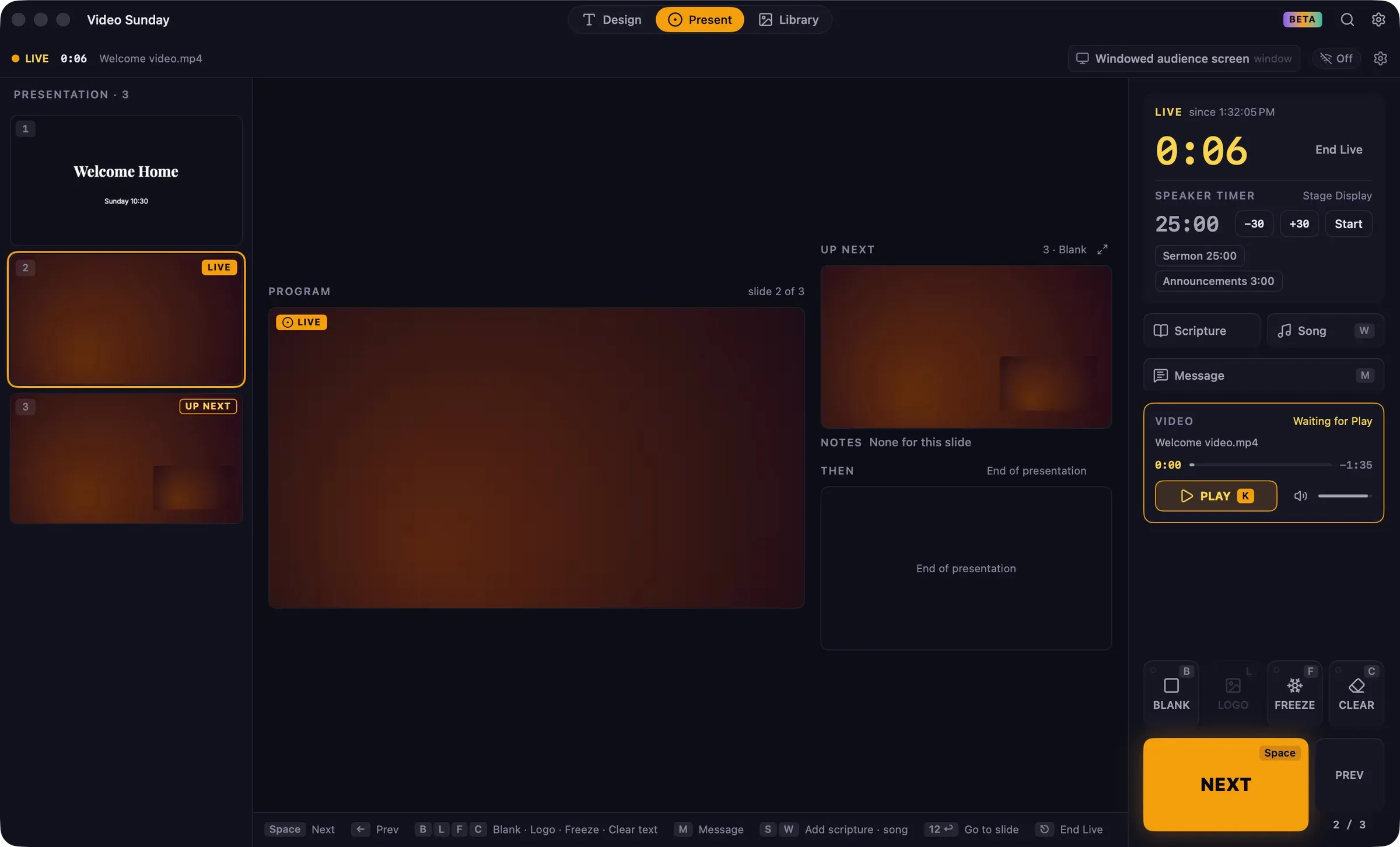
Controls
Section titled “Controls”| To | Do this |
|---|---|
| Play or pause | Click the play button, or press K. |
| Restart from the beginning | Click the restart button, or press 0. |
| Jump to a point | Drag along the scrub bar. Elapsed and remaining time are shown on either side. |
| Change the volume | Use the volume slider, or click the speaker to mute. |
The module shows the video’s status: Waiting for Play, Playing, Paused, or Ended, along with what happens at the end (for example, “Ended · Holding last frame”).
Videos that wait for Play
Section titled “Videos that wait for Play”A video set to Wait for Play shows one large PLAY button when its slide goes live. Nothing plays until you press it, so you can introduce the video first.
To change how a video plays, select its slide in Design and set the playback options in the inspector. See Video playback.
More than one video on a slide
Section titled “More than one video on a slide”The main video, usually the Media slide’s video or the background, gets the full controls. Other videos on the slide get a compact row each, with play, pause and mute. K and 0 control the video you last used.
Video sound plays through your Mac’s sound output. If an AirPlay TV is one of your audience screens, you can choose whether video sound plays on the Mac (and your sound system) or on the TV. See AirPlay TVs.