

Your first service
Follow these steps to make a presentation with a welcome slide, a song and a Bible passage, then show it on a screen. The links in each section have more detail.
1. Create a presentation
Section titled “1. Create a presentation”-
On the Start screen, click New Presentation, or choose File › New (⌘N).
The presentation opens in Design, empty and named Untitled.
-
Choose File › Save (⌘S), name the file (for example, “Sunday, Nov 2”), and choose where to keep it.
The presentation’s name is always its file name. Guidepost autosaves a working copy as you work, but only Save updates your file. See Saving and recovery.
2. Add a welcome slide
Section titled “2. Add a welcome slide”-
In the + Add slide row above the slide list, click Text.
A Text slide is added, ready for you to type its heading on the canvas.
-
Type a heading, such as “Welcome”. To add a second line, such as your church name and service time, type it in the Body field in the inspector on the right.
To use a different layout, click the small arrow on the Text card and choose Title, Body, Quote, Lower third or Announcement. See Adding slides.
3. Add a song
Section titled “3. Add a song”-
Click Song in the + Add slide row (⇧⌘W).
-
Type part of the title, an author or a line of lyrics, then choose the song.
Guidepost includes several public-domain hymns, such as Amazing Grace. You can add your own songs in the Library.
-
Choose an arrangement, the order the sections are sung in. You can click sections to remove them or add more for this service only.
-
Click Add.
The song is added as a group: one slide per two lines of lyrics (or four, depending on the theme), split by section. See Songs.
4. Add scripture
Section titled “4. Add scripture”-
Click Scripture (⇧⌘S).
-
Type a reference, such as
john 3:16-18orps 23. The line under the field tells you what Return will do, for example “John 3:16–18 · ↵ adds 3 slides”. -
Press Return or click Add.
Each verse becomes one slide, grouped under the reference. See Scripture.
5. Choose a look
Section titled “5. Choose a look”Click Presentation above the slide list to show the presentation in the inspector on the right. Under Theme, click a theme to apply it to every slide. See Themes.
6. Choose your screens
Section titled “6. Choose your screens”-
Choose Presentation › Screens….
-
Under Audience screens, turn on the projector or TV that should show the slides. Your own display is marked Your screen and can’t be used.
With only one display, turn on Windowed audience screen to show the slides in a window instead.
-
Click Done.
Guidepost remembers this setup by each screen’s name and restores it next time the same screens are connected. For a TV over AirPlay, see AirPlay TVs.
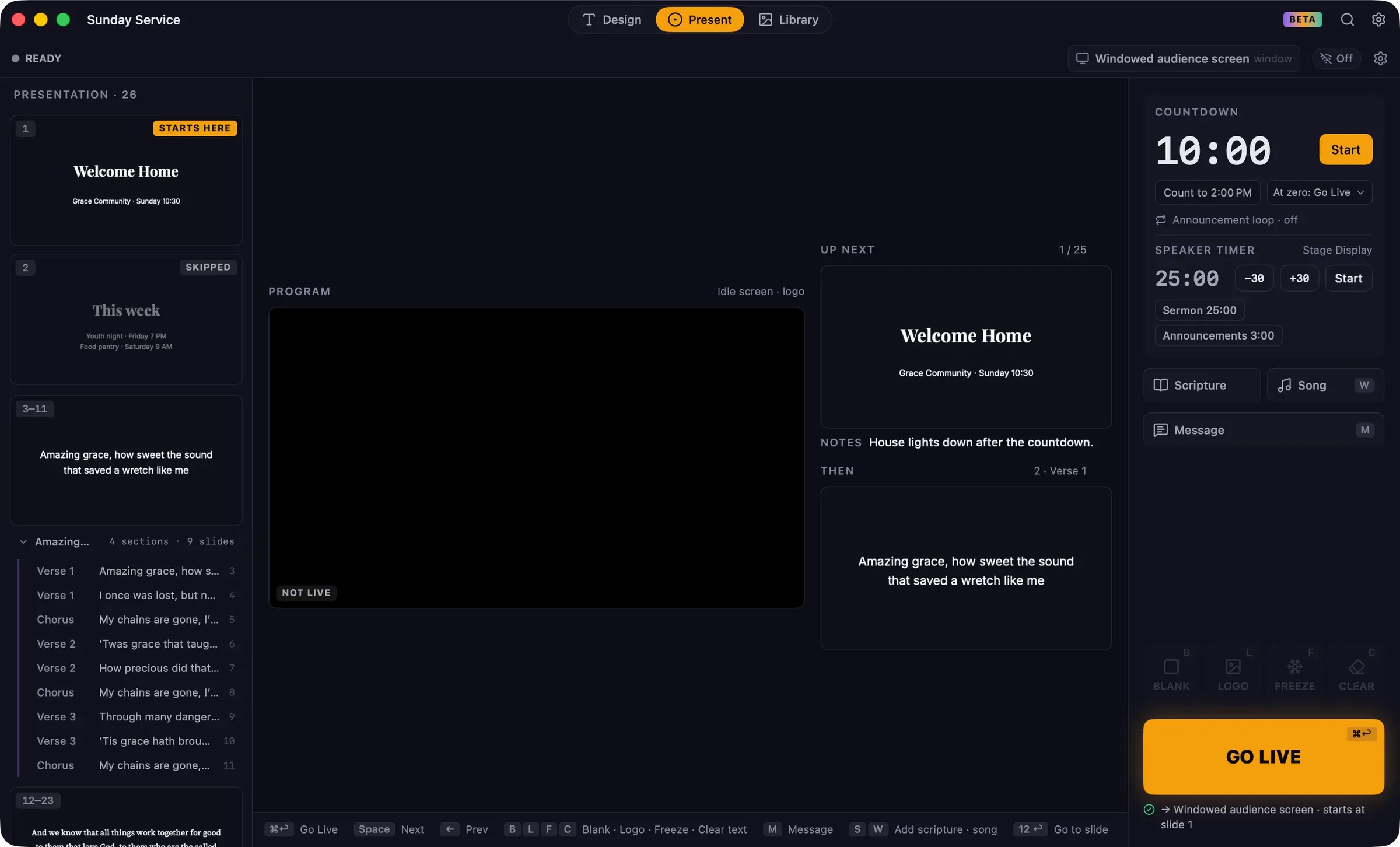
7. Go live
Section titled “7. Go live”-
Press ⌘2 to switch to Present.
-
Check the line under GO LIVE. It lists where the slides will go, for example “→ Epson Projector + Stage Display”, and any problem that needs attention.
-
Click GO LIVE, or press ⌘Return.
-
Press Space or → to move to the next slide, and ← to go back. A presenter clicker works without any setup.
-
To finish, press Esc and confirm End live.
Next steps
Section titled “Next steps”- Blank the screen during prayer with B.
- Show a message such as “Kids, head to Children’s Church”.
- Start a countdown before the service.
- Set up a Stage Display for the band and the speaker.