

Songs
The Song picker adds a song from your Library as a group of slides. It opens from the Song card in the Add row (⇧⌘W), from Search, and from Present with W.
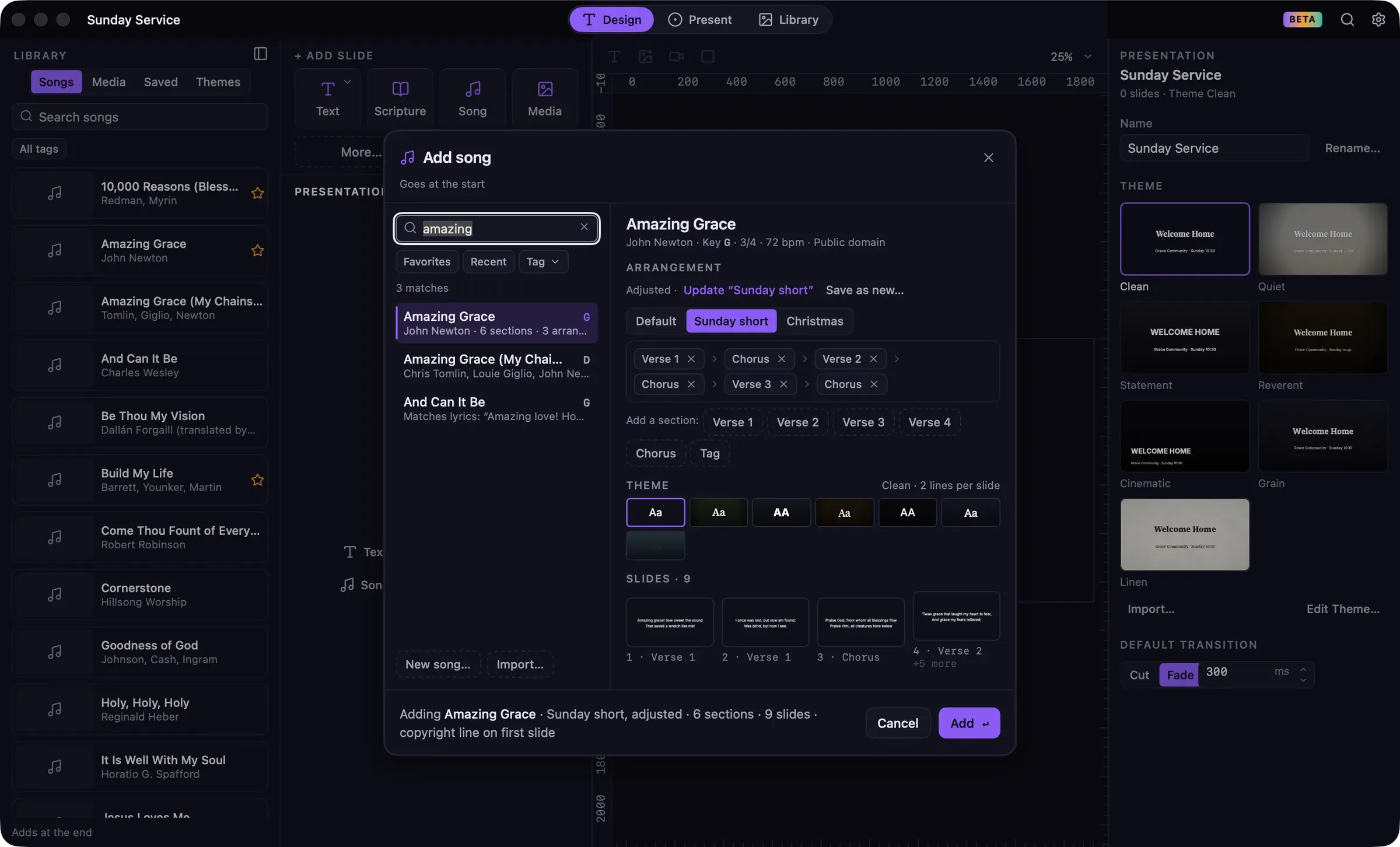
Find a song
Section titled “Find a song”Type in Search songs. The search covers titles, authors, lyrics, CCLI song numbers and tags, and each result says why it matched, for example “Matches lyrics: …”. Use Favorites, Recent and Tag to narrow the list.
If the song isn’t in your Library yet, click New song… to write it, or Import… to bring in song files. See Songs and the song editor and Importing songs.
Choose an arrangement
Section titled “Choose an arrangement”An arrangement is the order the sections are sung in. Choose Default or one of the song’s saved arrangements. The sections appear as chips in order.
To adjust it for this service:
- Click the × on a chip to remove that section.
- Drag chips to reorder them.
- Click a section under Add a section to add it to the end. A section can appear more than once.
Adjustments apply only to what you’re adding. To keep them for next time, click Update “Sunday short” to change the arrangement you started from, or Save as new… to save a new arrangement.
Choose how it looks
Section titled “Choose how it looks”- Theme: keep the presentation’s theme, or click another to give this song its own look.
- Slides: a preview of how the song will split into slides with the chosen theme.
Add it
Section titled “Add it”The footer summarizes what will be added, for example “Adding Amazing Grace · Sunday short, adjusted · 6 sections · 9 slides · copyright line on first slide”. Click Add.
The song becomes one group named after the song. Slides are split:
- by section, so a slide never mixes the end of one verse with the start of the chorus;
- by the theme’s lines per slide (2 or 4);
- wherever the song has a blank line inside a section, which forces a new slide.
A copyright line is added according to Settings › Scripture & Songs › Copyright display. See Copyright and CCLI.
Editing lyrics on a slide
Section titled “Editing lyrics on a slide”Select a Song slide to see its Song, Section and Lines in the inspector. Changing the lines here or on the canvas changes only this slide, which is marked Edited. Click Revert to source to go back to the song’s lyrics. To change the Library copy, edit it in the song editor. Presentations that already use the song keep their existing lyrics; add the song again to use the updated version.
Repeating or skipping a section during the service
Section titled “Repeating or skipping a section during the service”You don’t need to change the arrangement when the band repeats a chorus. In Present, the song map has Repeat and Skip for each section, which change only this run of the service. See Changing the service while live.