

Messages
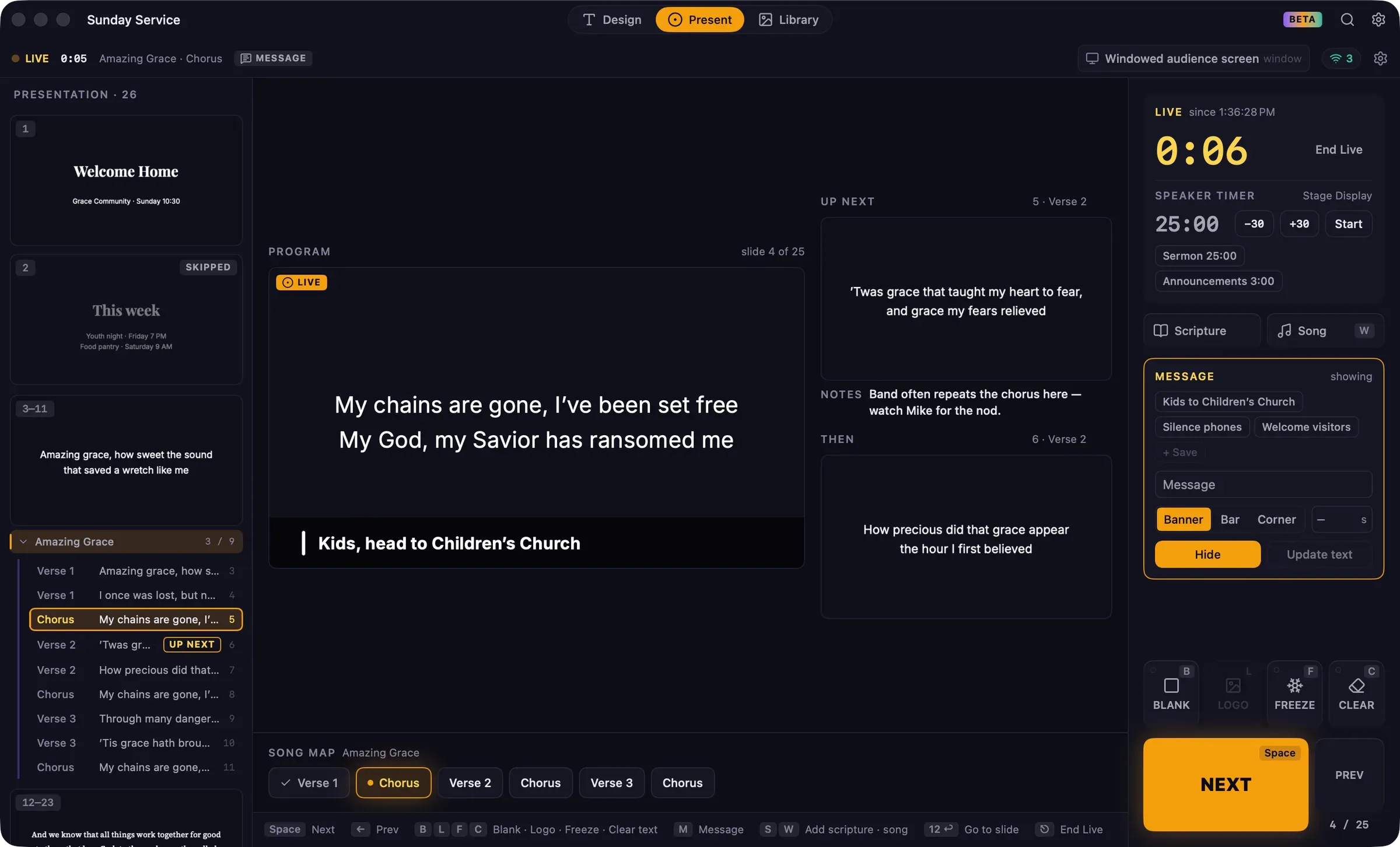
A message is a short line of text shown over the slides along the bottom of the audience screens, for example “Kids, head to Children’s Church” or “Please silence your phones”. The slide underneath stays as it is.
Show a message
Section titled “Show a message”- Press M, or click Message on the control rack. The composer opens with the cursor in the text field.
- Type the message, or click a saved message to fill it in.
- Choose a style:
- Banner: a full-width band across the bottom.
- Bar: a slimmer strip.
- Corner: a small badge in the corner.
- To hide it automatically, type a number of seconds in the auto-hide field.
- Click Show.
Pressing M only opens the composer. Click Show to put the message on screen.
While a message is up, the status bar shows a MESSAGE badge, and the composer shows its status, such as “showing · hides in 0:12”.
Change or hide it
Section titled “Change or hide it”- Edit the text and click Update text to change the message without hiding it.
- Click Hide to remove it.
Messages can be shown while live or during the countdown. Ending live clears any message.
Saved messages
Section titled “Saved messages”Messages you use often can be saved as chips above the text field. Guidepost starts with “Kids to Children’s Church”, “Silence phones” and “Welcome visitors”.
- Click a chip to fill the composer with its text. Click Show when you’re ready to display it.
- To save the current text, click + Save.
- Right-click a chip to Rename… or Delete it.
Where messages appear
Section titled “Where messages appear”The message is shown over the slide, Freeze, Clear text and the countdown, on every audience screen and on network viewers. It’s hidden while the screen is on Blank or Logo, and the composer says so (“hidden by Blank”). It reappears when the hold ends.
To send a private note to the speaker instead, use a cue.