

Countdown and speaker timer
The Timers module at the top of the control rack has two parts: the countdown, which the audience sees before the service, and the speaker timer, shown on the Stage Display.
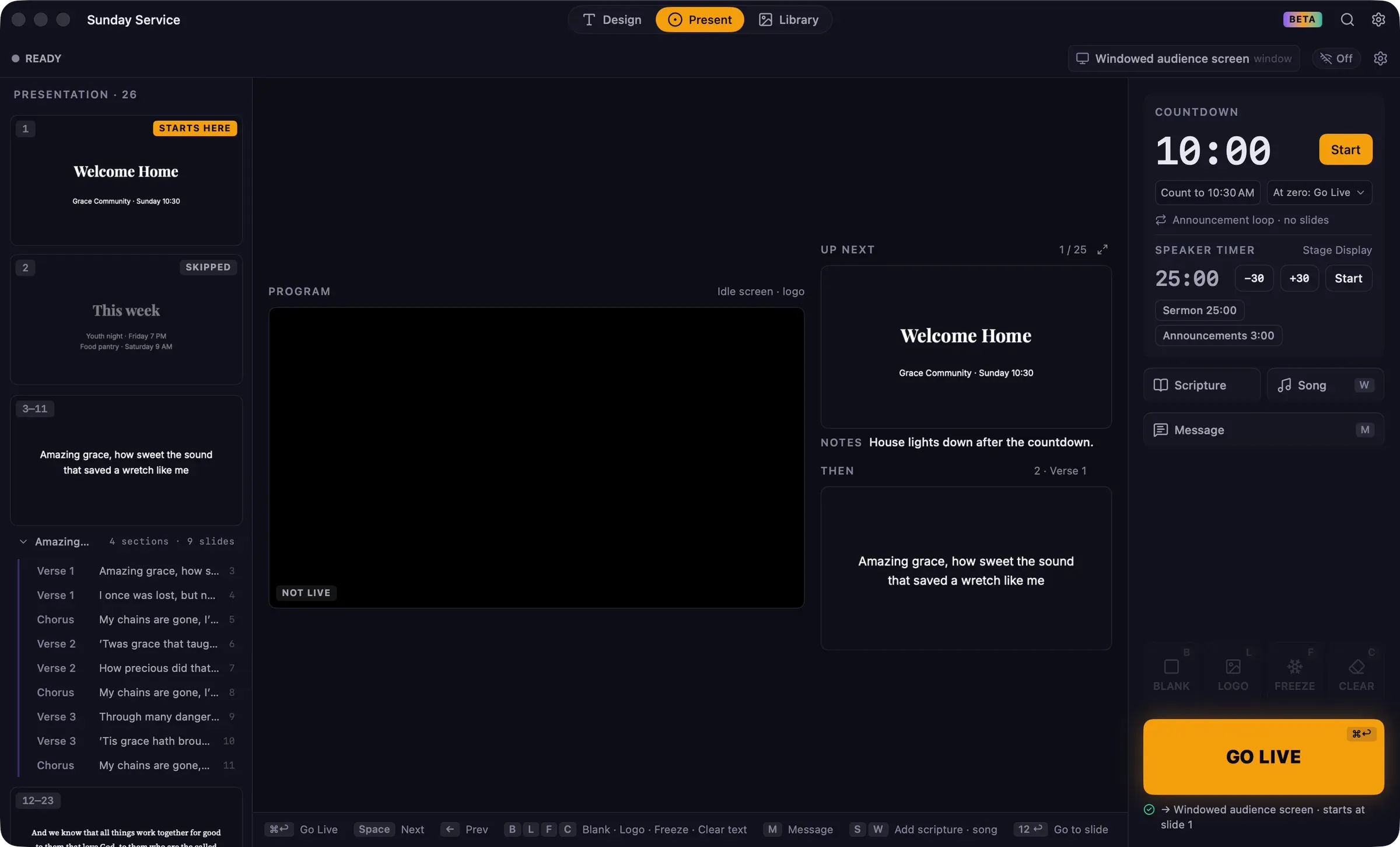
Countdown
Section titled “Countdown”Start a countdown
Section titled “Start a countdown”-
Before going live, click the time in the Countdown row and type a length, such as
10,10:00or90s.To count to a time of day instead, click Count to and type the time, such as
10:30 AM. -
Choose what happens At zero:
- Go Live: the service goes live automatically on the starting slide.
- Hold at 0:00: the countdown stays at zero until you go live yourself.
- Show Logo: the screen switches to your logo.
-
Click Start.
Starting a countdown opens the audience screens and shows the countdown in the presentation’s theme. The status bar shows COUNTDOWN and the time the service starts. Click Stop to cancel it.
The choices you make in the rack apply to today only. The defaults, and the countdown’s colors and background, are in Settings › Countdown.
If something isn’t ready at zero
Section titled “If something isn’t ready at zero”When the countdown reaches zero, Guidepost runs the same checks as the GO LIVE button. If one of them would need an answer, such as “No audience screen selected”, the countdown stays at 0:00 and tells you what needs attention. The audience screens continue showing the countdown.
Announcement loop
Section titled “Announcement loop”The countdown can rotate your saved slides, such as weekly announcements, beside the time.
- Click the Announcement loop line under the countdown to turn the loop on, choose how often the slide changes (5, 8, 12 or 20 seconds), and pick the saved slides to show.
- To set the slides that are used every week, go to Settings › Countdown › Announcement loop.
Messages during the countdown
Section titled “Messages during the countdown”You can show a message over the countdown. It’s hidden automatically when the service goes live.
Speaker timer
Section titled “Speaker timer”The speaker timer appears only on the Stage Display, so the speaker can see how much time is left without the congregation seeing it.
| To | Do this |
|---|---|
| Set the time | Click a preset, such as Sermon 25:00, or click the time and type one. |
| Start or pause | Click Start or Pause. |
| Add or remove time | Click +30 or −30. |
| Reset | Click Reset, or right-click the timer and choose Reset Speaker Timer. |
On the Stage Display, the timer changes color when paused and flashes when it reaches zero. To let it count past zero into overtime (shown in red), turn on Speaker timer counts past zero in Settings › Stage Display. That page is also where you add your own presets, such as “Announcements 3:00”.
The speaker timer keeps running if you end live, so you can reset it when you’re ready.
Elapsed time
Section titled “Elapsed time”Once live, the Timers module shows LIVE, the time you went live, and how long the service has been running. The same elapsed time is in the status bar.