

Search and commands
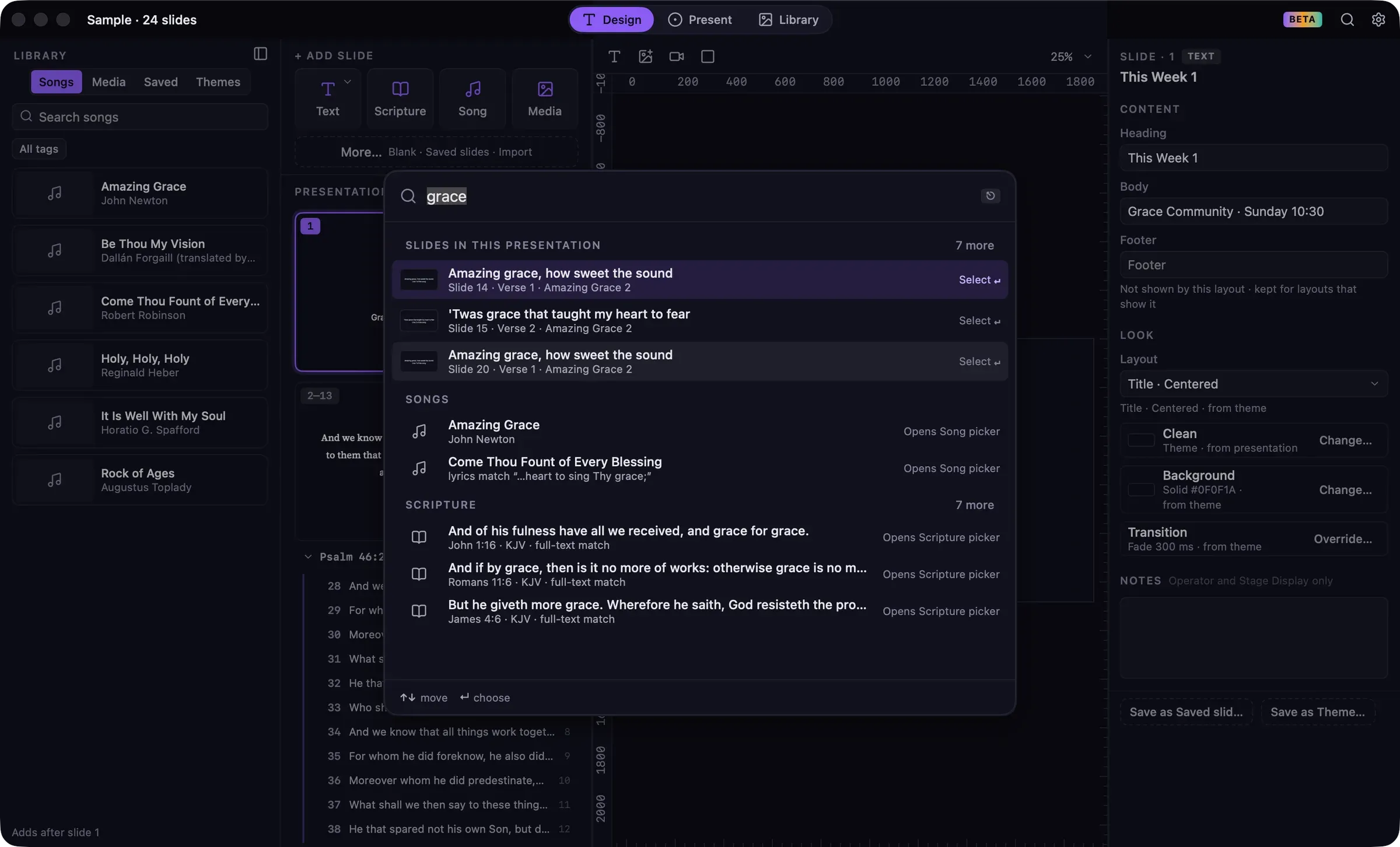
Press ⌘K, or click the magnifying glass in the title bar, to open Search. Use it to find content, run commands or open a setting.
What you can find
Section titled “What you can find”| Group | Searches | Choosing a result |
|---|---|---|
| Slides in this presentation | Slide text and labels | Selects the slide in Design, or shows it in Present. |
| Songs | Title, author, lyrics, CCLI number and tags | Opens the Song picker on that song. |
| Scripture | References and Bible text | Opens the Scripture picker with the passage filled in. |
| Media | Name and tags | Adds a Media slide. ⌘Return shows it in the Library instead. |
| Saved slides | Name and tags | Adds the slide. |
| Themes | Name | Applies the theme to the current group, or the presentation. ⌘Return shows it in the Library. |
| Commands | Action names, such as “Go Live”, “Blank” or “Toggle Grid” | Runs the command. Saved messages appear as commands too, such as “Show Message: Silence phones”. |
| Settings | Setting names | Opens Settings at that setting. |
Each group shows its top results, with a line to show more. When you type something that looks like a reference, such as ps 23, Scripture comes first. While live, slides and commands come first.
Keyboard
Section titled “Keyboard”- ↑ and ↓ move through results.
- Return chooses a result.
- Esc closes Search.
When the box is empty, your recent searches are listed.
While live
Section titled “While live”Adding content from Search follows the same rules as the pickers: Return adds and shows, and ⌥Return adds without changing the screen. New slides go after the live slide’s group.