

Install Guidepost
Requirements
Section titled “Requirements”- A Mac with Apple silicon (M1 or later).
- macOS 26 or later.
- An internet connection to download the app, activate a license and check for updates. You can prepare and run services offline.
Guidepost is a Mac app only. There is no Windows or Linux version.
Install
Section titled “Install”-
Download Guidepost from the Guidepost website.
-
Open the downloaded disk image and drag Guidepost into the Applications folder.
-
Open Guidepost from Applications or Launchpad.
Guidepost is signed and notarized by Apple, so it opens without a security warning.
Guidepost checks for updates automatically. See Updates.
The Start screen
Section titled “The Start screen”When no presentation is open, Guidepost shows the Start screen.
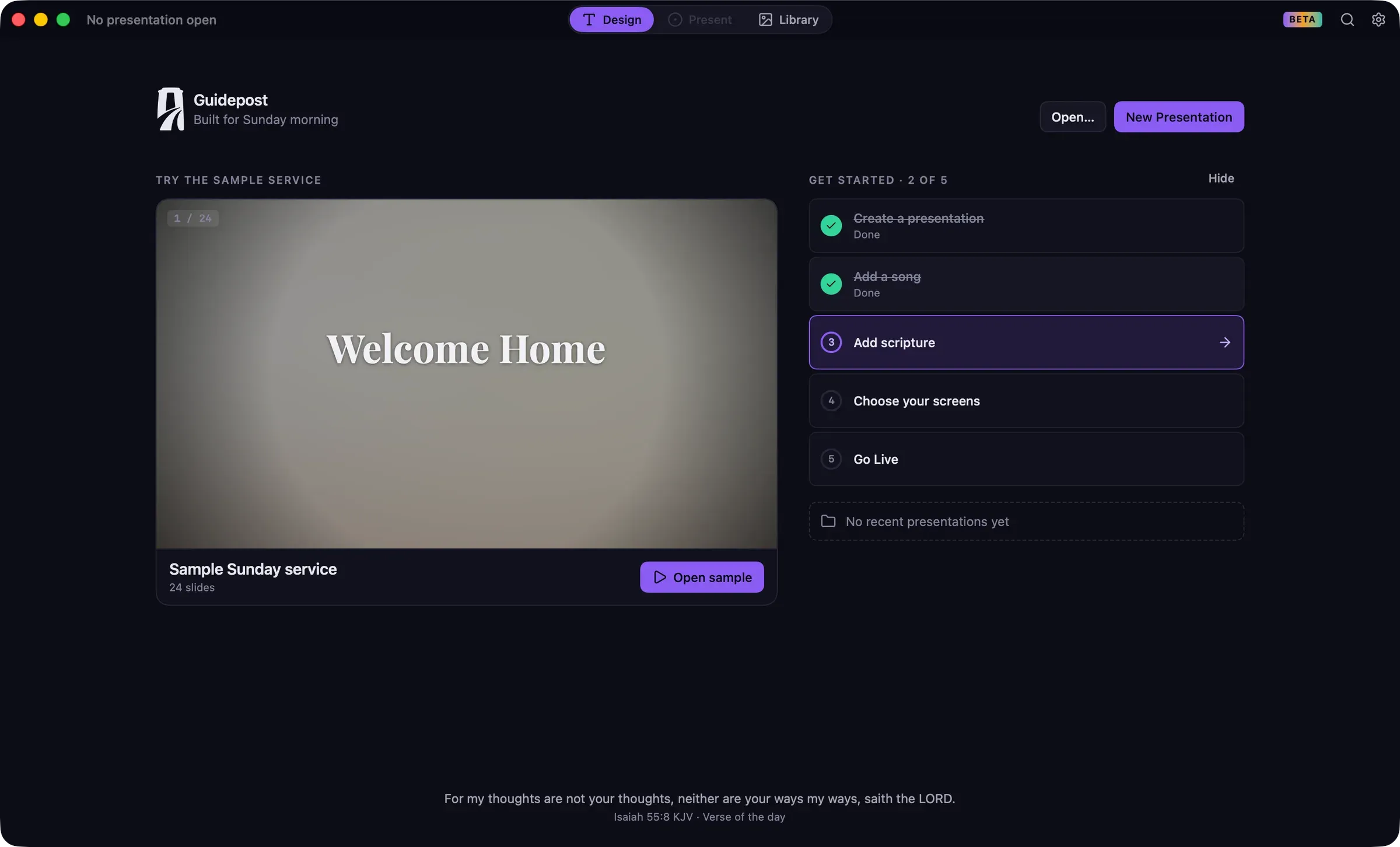
- New Presentation creates an empty presentation and opens it in Design.
- Open… opens a presentation file from Finder.
- Continue where you left off shows the presentation you used last, with its first slide. Click Continue to open it.
- Recent lists other recent presentations, with a search field. Right-click a presentation to Pin it to the top of the list, Show in Finder, or Remove from Recent. Removing a presentation from the list doesn’t delete the file.
- The verse of the day appears at the bottom, in your default translation.
First launch
Section titled “First launch”The first time you open Guidepost, the Start screen also shows:
- Try the sample service: a complete Sunday service with songs, scripture and announcements. Click Open sample to explore it. The sample opens as an untitled copy, so your changes don’t affect the original. You can open it again at any time from Help › Try the Sample Service.
- Get started: a five-step checklist (Create a presentation, Add a song, Add scripture, Choose your screens, Go Live). Click a step to do it. Steps are checked off when you complete them anywhere in the app. Click Hide to hide the checklist permanently.
What opens at launch
Section titled “What opens at launch”By default, Guidepost reopens the presentation you had open last. To see the Start screen every time instead, open Settings › General and set When Guidepost opens to Show Start screen. Double-clicking a presentation in Finder always opens that presentation.