

Stage Display
The Stage Display is a screen for the band and speaker. It shows what’s on screen now, what’s coming next, and private information the congregation doesn’t see.
To set one up, open the Screens panel and choose a display, or a window, under Stage Display. An iPad connected with Sidecar works as a Stage Display too.
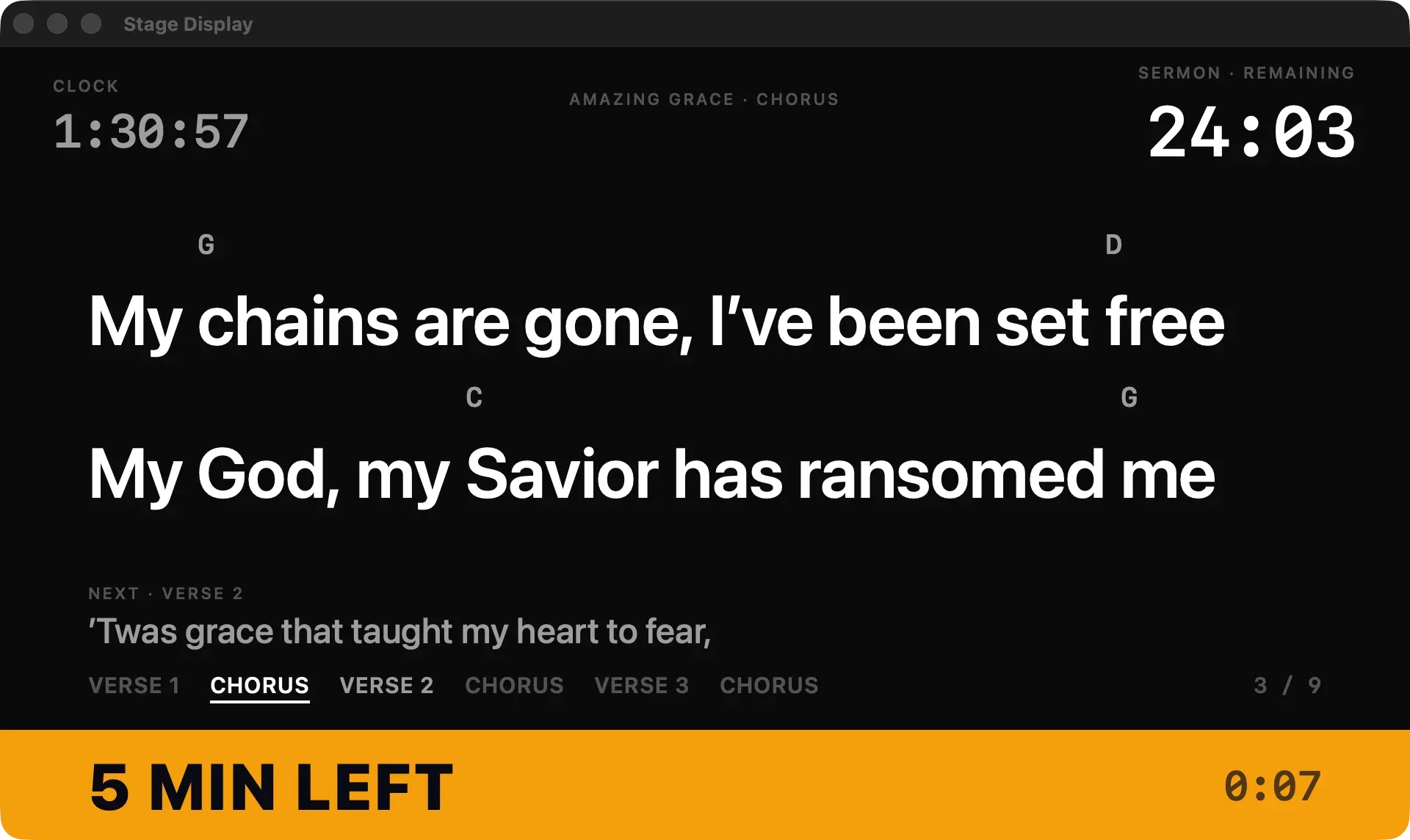
What it shows
Section titled “What it shows”- Clock, top left.
- What’s on screen, such as “Amazing Grace · Chorus”, at the top.
- Speaker timer, top right. See Speaker timer.
- Now: the current lyrics or verse, in large type. Chords appear above the lyrics when turned on.
- Next: the next section and its first line, or a thumbnail of the next slide.
- Notes: the slide’s notes.
- Song map: the song’s sections in order, with the current one underlined and skipped sections struck through.
- Cue banner: an amber banner across the bottom when you send a cue.
Before you go live, the Stage Display shows an idle screen, or the countdown when one is running.
When the audience screen changes
Section titled “When the audience screen changes”The Stage Display follows your slide position, even when a hold changes what the audience sees:
| Audience sees | Stage Display shows |
|---|---|
| Blank | AUDIENCE BLANKED, with the lyrics still visible. Or, if you choose, a blank stage too. |
| Logo | AUDIENCE: LOGO, with the lyrics still visible. |
| Freeze | AUDIENCE FROZEN, and the slide you’ve moved to, not the frozen one. |
Chords
Section titled “Chords”Chords come from the song’s lyrics, where they’re written in square brackets, such as [G]Amazing [C]grace. They never appear on audience screens. To show them on the Stage Display, turn on Chords above lyrics in Settings › Stage Display. See Songs and the song editor.
Settings
Section titled “Settings”Settings › Stage Display controls what the Stage Display shows, with a live preview:
| Setting | Options |
|---|---|
| Shown on the stage | Next, Song map, Clock, Slide notes, Speaker timer, Chords above lyrics |
| Next shows | Text or Thumbnail |
| Clock | 12-hour or 24-hour |
| Lyric size | Normal, Large or Extra large |
| Background | Any color |
| When the audience screen is blanked | Show a notice, or Blank the stage too |
| Speaker timer counts past zero | On or off |
| Your cues | Your own cue chips |
| Timer presets | Speaker timer presets, such as Sermon 25:00 |
In Present
Section titled “In Present”When a Stage Display is active, the third monitor in Present shows a live view of it, and the control rack shows the Stage Display module for sending cues.