Changing the service while live
You can add content, change song sections and edit slides during a service. Undo these changes with ⌘Z, and Edit › Undo always says what it will change.
Add scripture or a song while live
Section titled “Add scripture or a song while live”When the pastor says “turn to Psalm 46”:
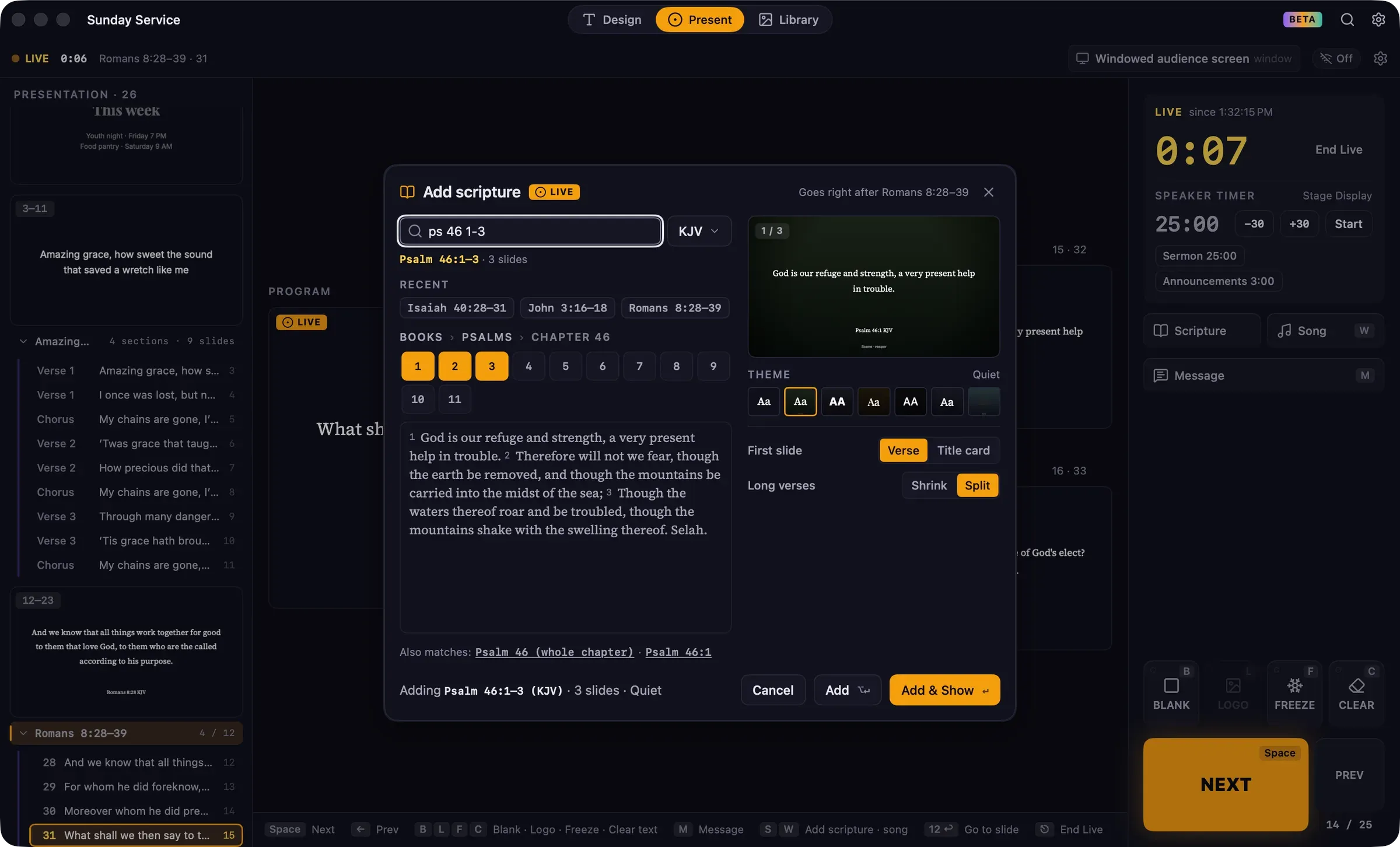
- Press S in Present (or click Scripture on the rack).
- Type
ps 46 1-3. - Press Return.
The passage is added and shown immediately.
Press W (or click Song) to add a song the same way. While live, the Scripture and Song pickers have two buttons:
- Add & Show (Return) adds the slides and shows the first one immediately.
- Add (⌥Return) adds the slides without changing what’s on screen.
New slides go right after the live slide’s group, so the rest of the service stays in order. The picker shows where, for example “Goes right after Romans 8:28–39”.
Search (⌘K) follows the same rules while live: Return adds and shows, ⌥Return only adds.
Repeat or skip a song section
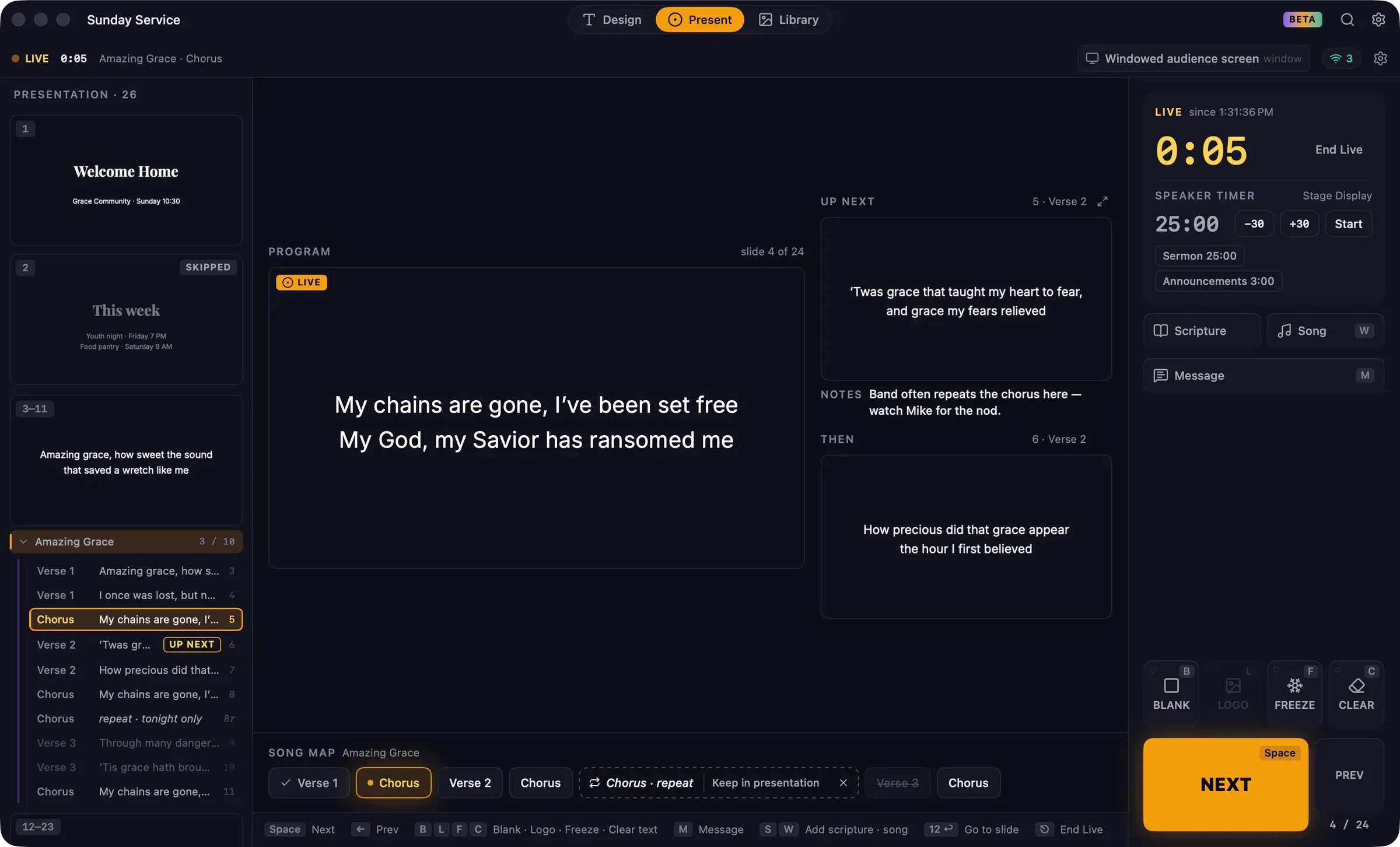
Section titled “Repeat or skip a song section”When the live slide is in a song, the song map under the monitors lists the song’s sections. Hover over a section for two buttons:
- Repeat plays the whole section again right after the current one. It’s marked repeat in the song map and in the slide list. To remove it, click the × on the repeat chip.
- Skip passes over the whole section for this run. Skipped sections are struck through. Click again to unskip.
Repeats and skips are temporary. They aren’t saved in the presentation and are cleared when you end live. To keep a repeat in the presentation, click Keep in presentation on its chip.
Edit slides while live
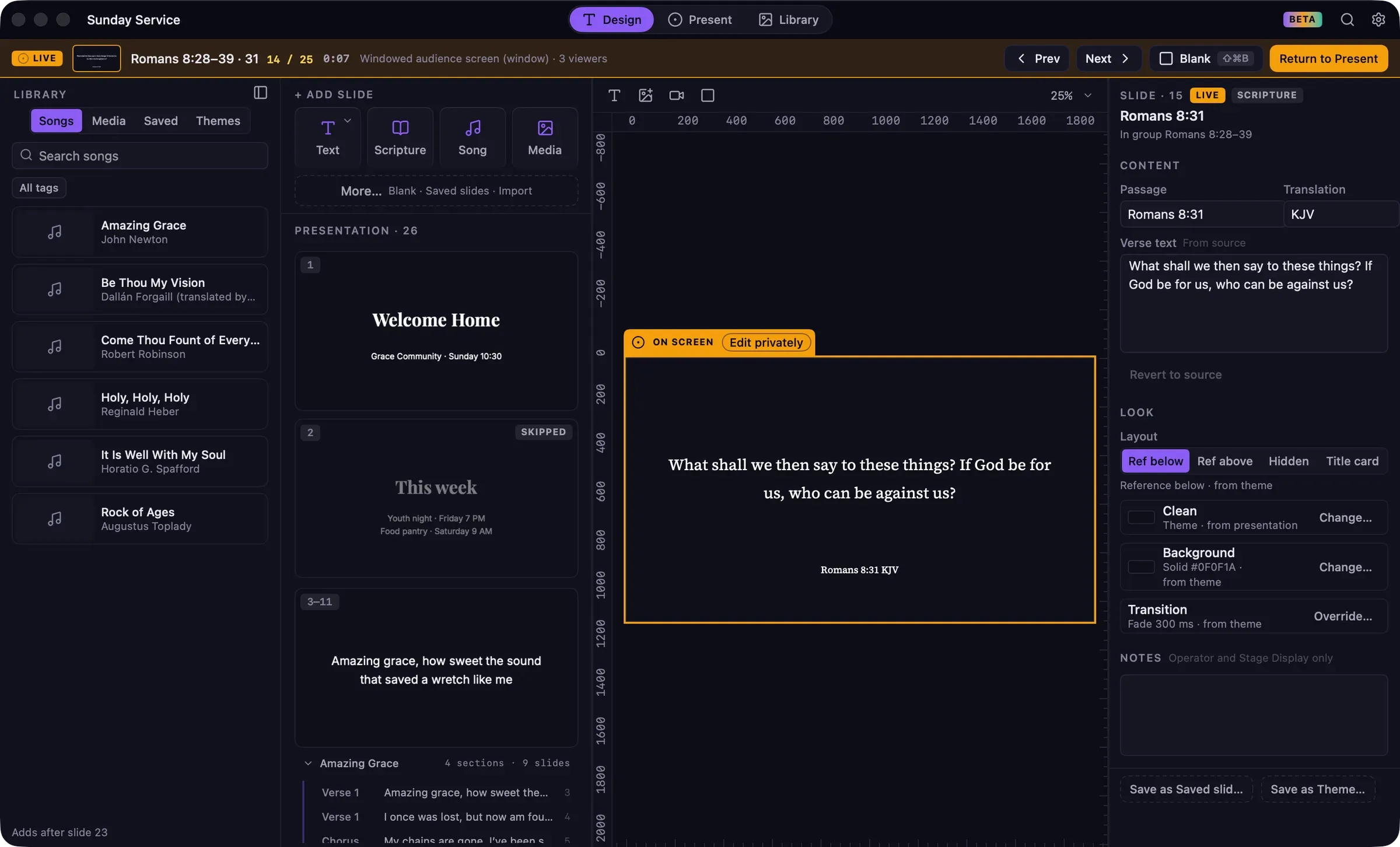
Section titled “Edit slides while live”You can edit any slide in Design during the service, including the one on screen.
When you select the slide that’s live, a tab on the canvas reads On screen: changes you make appear on the audience screens as you make them. To work without the audience seeing, click Edit privately. The audience screens freeze on the current slide until you choose:
- Update screen, to show your changes; or
- Discard, to throw them away.
Editing any other slide doesn’t affect the screens until that slide is shown.
The Live bar
Section titled “The Live bar”While live, an amber Live bar appears under the title bar in Design and Library. It shows a thumbnail of what the audience sees, the slide’s name and position, and how long you’ve been live, with:
- Prev and Next;
- Blank (⇧⌘B);
- Return to Present (⌘2).