

Themes
A theme sets the fonts, colors, background, text effects and default layouts for your slides. It also includes options to make text easier to read over the background. Every presentation has one theme. Slides follow it unless you change something on a slide itself.
Built-in themes
Section titled “Built-in themes”Guidepost includes seven themes: Clean (the default for new presentations), Quiet, Statement, Reverent, Cinematic, Grain and Linen. Built-in themes can’t be changed or deleted, but you can edit a copy.
Apply a theme
Section titled “Apply a theme”- To the whole presentation: click Presentation above the slide list, then click a theme under Theme in the inspector.
- To one group, such as a song: right-click the group and choose Apply Theme to Group, or select one of its slides and click Change… beside the theme in the inspector.
- When adding a song or passage: choose a theme in the picker’s theme strip.
- From the Library: select a theme in Library › Themes and click Apply to presentation, or double-click it on the Library drawer’s Themes tab.
After a theme change, a notice summarizes what changed, for example “Updated 24 slides · 2 slides keep their own look”, with Undo.
Overriding the theme on one slide
Section titled “Overriding the theme on one slide”You can give a slide its own background, transition or other settings. The inspector marks overridden properties with a small dot and shows Reset to theme beside them. Slides with overrides keep those settings when the theme changes; everything else follows the theme.
Edit a theme
Section titled “Edit a theme”-
Click Edit Theme… under the presentation’s theme in the inspector, or right-click a theme thumbnail and choose Edit Theme….
-
Change what you need. The preview on the right shows the theme on a Text, Scripture, Song and Announcement slide as you work.
-
Click Save Theme. The line above the buttons tells you how many slides in this presentation will update.
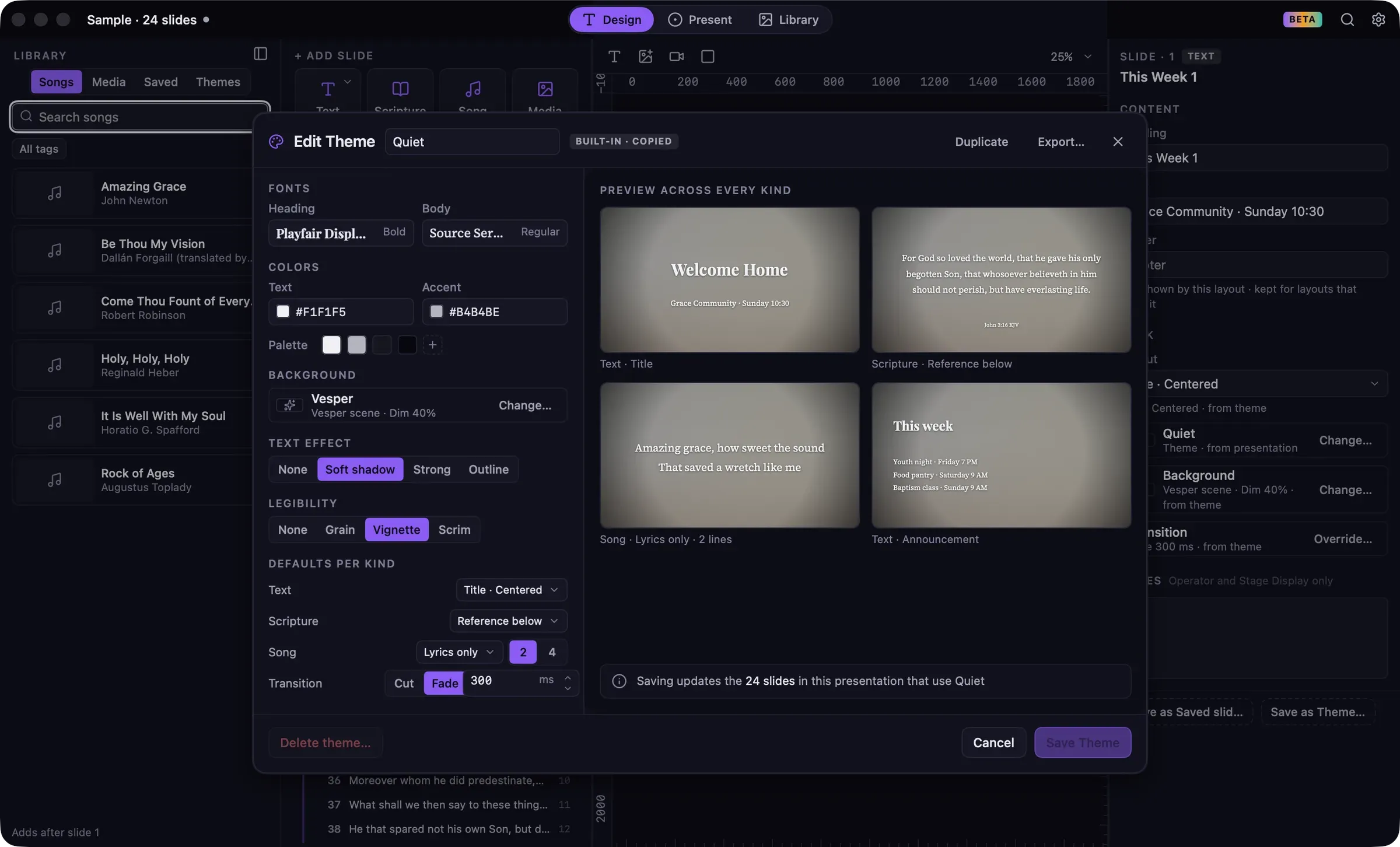
Editing a built-in theme makes your own copy (marked Built-in · copied). Type a new name at the top to tell it apart.
What a theme sets
Section titled “What a theme sets”| Section | Settings |
|---|---|
| Fonts | Heading and body font, each with a weight. |
| Colors | Text color, accent color, and a Palette of colors that appear first in every color picker. |
| Background | A color, gradient, image, video or scene, with optional dim. See Backgrounds. |
| Text effect | None, Soft shadow, Strong shadow or Outline. |
| Legibility | None, Grain, Vignette or Scrim, to keep text readable over busy backgrounds. |
| Defaults per kind | The default layout for Text, Scripture and Song slides; lines per slide for songs (2 or 4); and the transition (Cut or Fade, with a duration). |
Make a new theme
Section titled “Make a new theme”- From a slide: select a slide you’ve styled and click Save as Theme… at the bottom of the inspector. The theme editor opens with that slide’s look.
- From another theme: open it in the theme editor and click Duplicate.
- From scratch: in Library › Themes, click New theme.
Share themes
Section titled “Share themes”Click Export… in the theme editor, or Export in Library › Themes, to save a theme file. Import one with Import… under the presentation’s themes in the inspector, or Import theme… in Library › Themes. Theme files let you use the same look on another Mac or share it with another church.
Delete a theme
Section titled “Delete a theme”Click Delete theme… in the theme editor, or select the theme in Library › Themes and click Delete…. Slides that used it keep their look.
The font menu has three sections:
- Recently used: fonts you’ve used recently.
- Guidepost fonts: Inter, Source Serif 4, Playfair Display, Roboto Slab, Caveat and JetBrains Mono. These are built into Guidepost, so they look the same on every Mac and on network viewers.
- Mac fonts: every font installed on your Mac, including fonts added with Font Book.
Each name is shown in its own typeface, and you can search by name. If a presentation uses a font that isn’t installed on the Mac it’s opened on, Guidepost says so once, shows a similar built-in font instead, and keeps your original choice in the file.
Colors
Section titled “Colors”Color pickers show your theme’s palette first, then recently used colors, then presets. You can type a hex value, set the opacity, or use the eyedropper to sample a color from anywhere on screen. More… opens the standard macOS color panel.