

Cues for the speaker
A cue is a short private message for the speaker or the band. It appears as a large amber banner across the bottom of the Stage Display, and never on the audience screens.
The Stage Display module appears on the control rack while a Stage Display is connected.
Send a cue
Section titled “Send a cue”- Click Send cue to speaker, or press ⇧⌘C.
- Click a chip to send it straight away:
- 5 min, 2 min, 1 min, Wrap up
- Slow down, Speak up, Stand by, Take a sip
- any cues you’ve added yourself
- Or type your own cue in the Cue field and click Send. Cues can be up to 120 characters.
Choose how long it stays up: 5 s, 15 s or Until cleared. Guidepost remembers your choice.
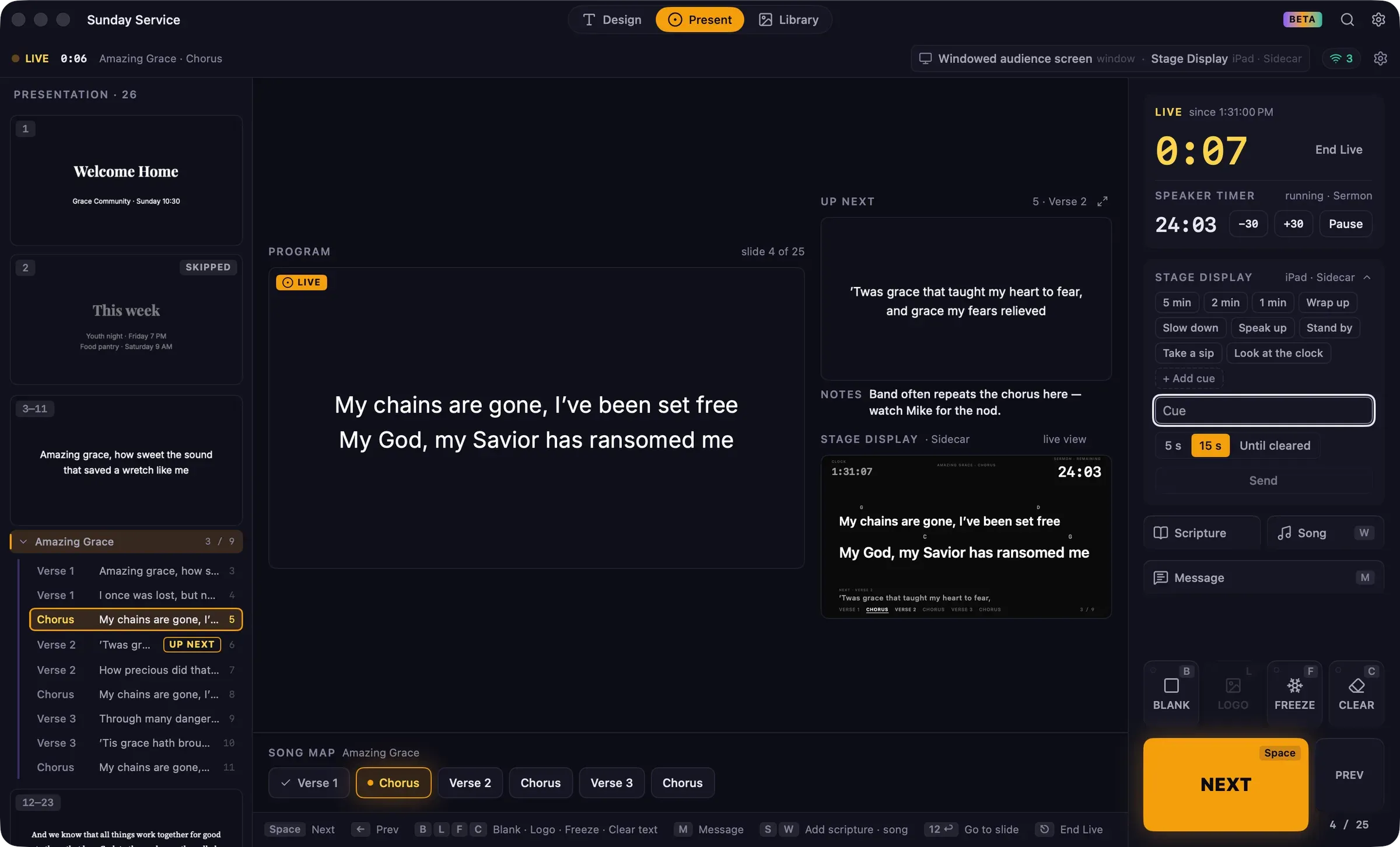
After sending, a notice confirms Cue sent with Undo, and the rack shows the active cue with the time remaining and Clear.
Add your own cues
Section titled “Add your own cues”Click + Add cue under the chips, type the cue, and press Return. Right-click one of your cues to remove it. You can also manage them in Settings › Stage Display › Your cues.
Confirm before sending
Section titled “Confirm before sending”To review a cue before sending it, turn on Confirm before sending a cue in Settings › General. Clicking a chip will then fill in the text; click Send to send it.