

AirPlay TVs
A TV with AirPlay built in, or any TV with an Apple TV attached, can be an audience screen without a cable to your Mac. Once connected, it supports holds, video and transitions like a wired audience screen.
Connect the TV
Section titled “Connect the TV”macOS manages AirPlay connections, so you connect the TV from Control Center. Guidepost can’t start the connection itself.
-
Make sure your Mac and the TV are on the same network. A guest network usually won’t work.
-
In the menu bar, open Control Center, then click Screen Mirroring.
-
Choose the TV.
-
Choose Use as Extended Display, not Mirror.
-
In Guidepost, open the Screens panel and turn on the TV under Audience screens.
Guidepost remembers the TV by name. Next week, connect it from Control Center the same way, and Guidepost restores its role automatically.
If the TV isn’t connected
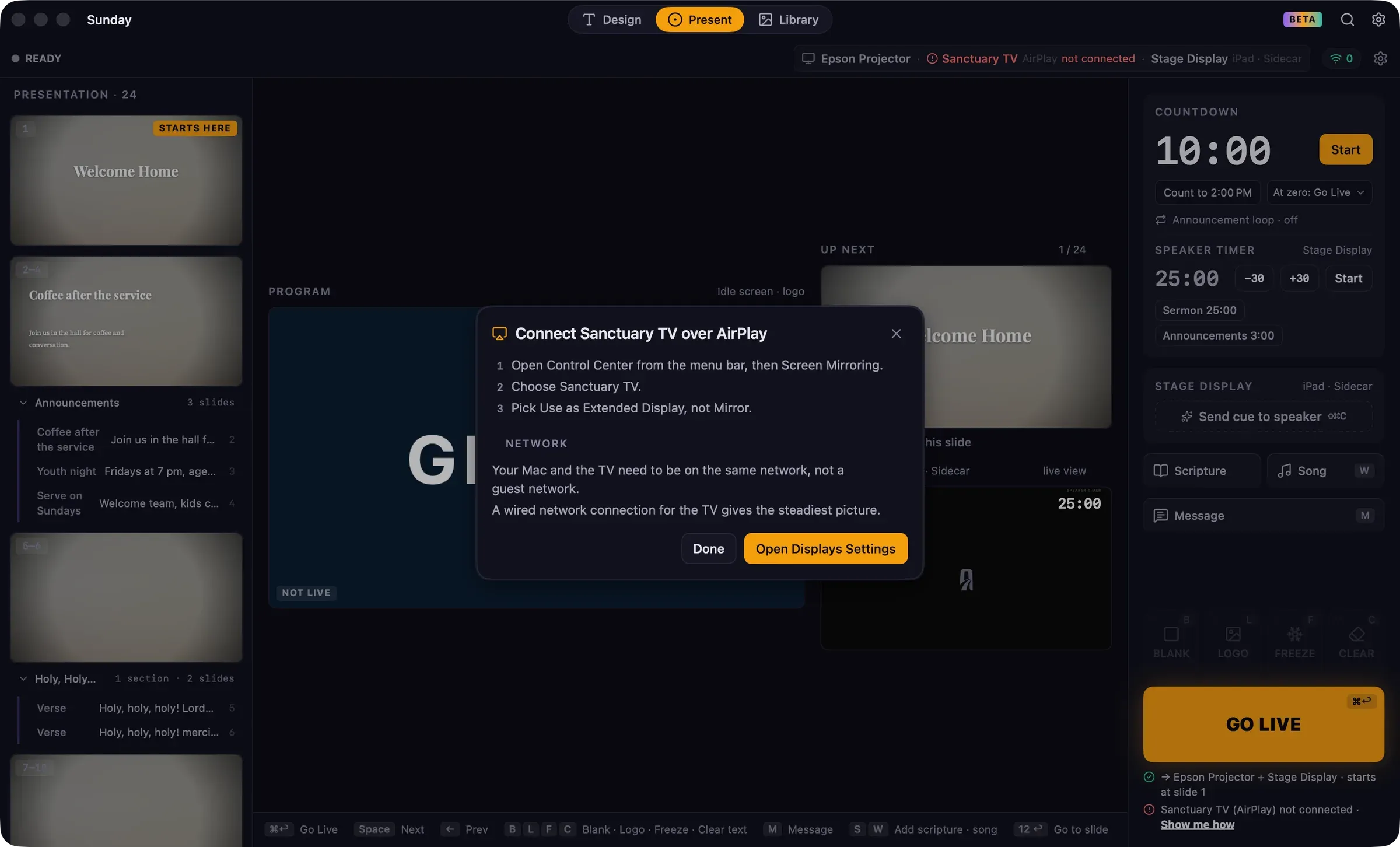
Section titled “If the TV isn’t connected”When a remembered AirPlay TV isn’t connected, the Screens panel lists it as Not connected with the connection steps, and the line under GO LIVE says so:
Sanctuary TV (AirPlay) not connected · Show me how
Click Show me how to see the steps. Open Displays Settings opens System Settings › Displays, where you can also check the TV’s arrangement. You can see the same steps at any time from Help › Connecting an AirPlay Display.
If the TV is mirroring your screen
Section titled “If the TV is mirroring your screen”If Mirror was chosen instead of Use as Extended Display, the TV shows a copy of your own screen, controls and all. Guidepost detects this, won’t put the slides on it, and shows a banner:
Sanctuary TV is mirroring your screen — choose Use as Extended Display in Screen Mirroring.
Click Show me how (or Fix under GO LIVE), then in Control Center › Screen Mirroring, choose Use as Extended Display under the TV.
Video sound
Section titled “Video sound”When an AirPlay TV connects, macOS may send your Mac’s sound to it. For each AirPlay audience screen, the Screens panel has a Video sound choice:
- This Mac / sound system: video sound plays through your Mac’s sound output, for example into the church’s sound desk.
- The display: video sound plays on the TV.
The choice is remembered for each TV. It affects only Guidepost’s videos, not your Mac’s other sound.
Staying connected
Section titled “Staying connected”While an AirPlay TV is an audience screen during a service, Guidepost keeps your Mac awake so the connection doesn’t drop when the Mac would otherwise sleep.
If the TV drops off the network during a service, the service keeps going on your other screens, and a banner says:
Sanctuary TV (AirPlay) disconnected — reconnect it from Screen Mirroring.
Reconnect it from Control Center. Guidepost puts the slides back on it automatically.