

The Library workspace
The Library (⌘3) holds the content you reuse from week to week. Every presentation on your Mac can use it. You can use the Library with or without a presentation open.
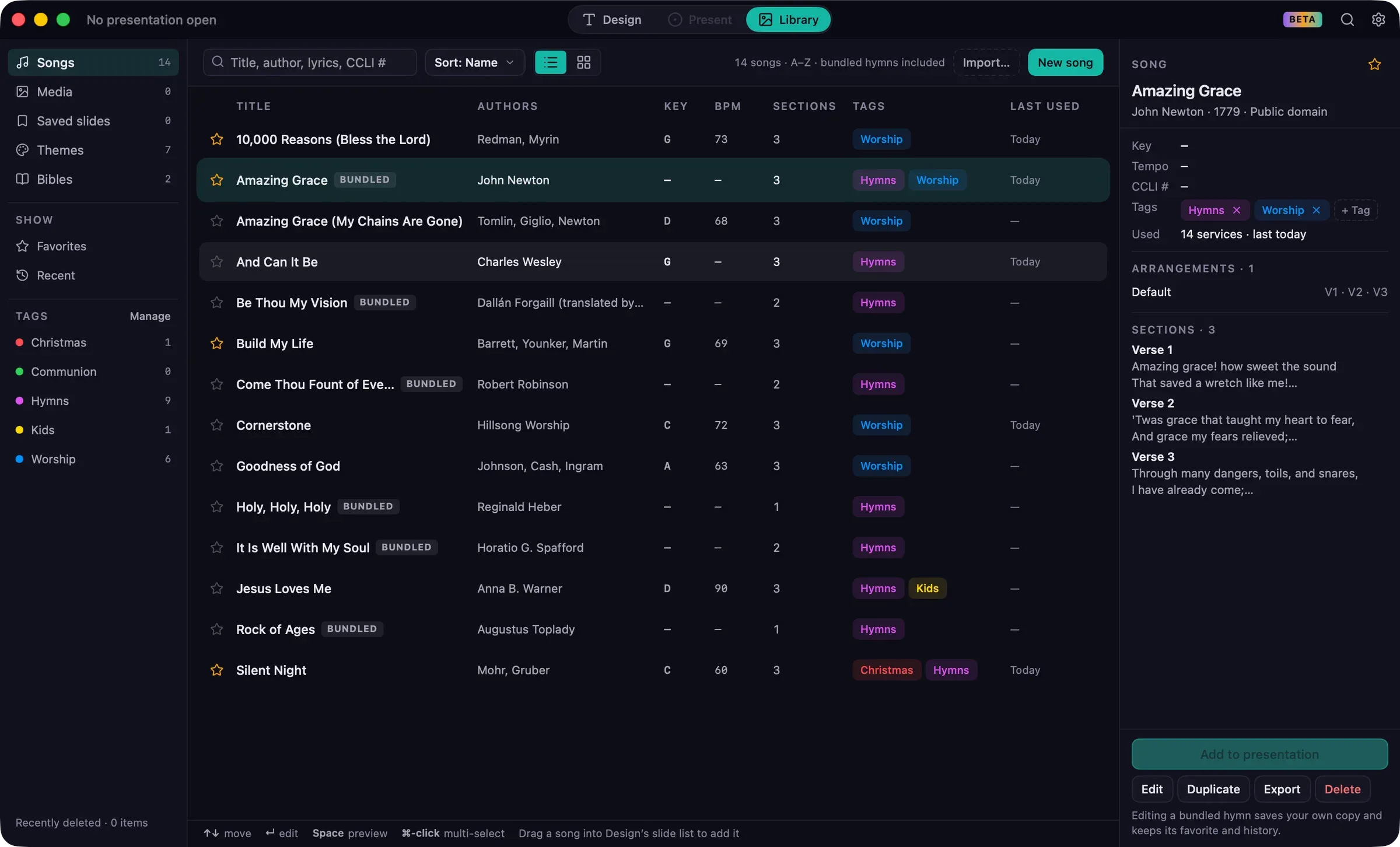
Layout
Section titled “Layout”- Sidebar: the five sections (Songs, Media, Saved slides, Themes and Bibles), then filters for the current section: Favorites, Recent (used in the last 30 days) and your Tags. At the bottom, Recently deleted.
- Middle: the items in the section, with a search field, Sort (Name, Date added or Last used), and List or Grid view. Each section remembers its own view.
- Right: details and actions for the selected item.
The buttons at the top right change with the section: Import… and New song for songs, Add from Photos… and Import… for media, and so on.
Adding to the presentation
Section titled “Adding to the presentation”Select one or more items and click Add to presentation, or right-click and choose Add to Presentation. The items are added after the selected slide in Design, following the same placement rules as everywhere else.
You stay in the Library. A notice confirms what was added, for example “Added ‘Amazing Grace’ after slide 12”, with Show to jump to it in Design.
You can also drag songs from the Library into Design’s slide list, or use Design’s Library drawer.
Sections
Section titled “Sections”- Songs: the bundled hymns and your own songs, in one list.
- Media: images and videos.
- Saved slides: finished slides to reuse.
- Themes: built-in themes and your own. Filter with Built-in and Mine. Select a theme to see its fonts, colors and background, and to Apply to presentation, Edit, Duplicate, Export or Delete… it. See Themes.
- Bibles: the translations installed on this Mac.
Keyboard
Section titled “Keyboard”| To | Press |
|---|---|
| Move through items | Arrow keys |
| Extend the selection | ⇧ + arrow keys, or ⇧-click |
| Add or remove an item from the selection | ⌘-click |
| Edit a song, or rename media | Return |
| Preview | Space |
| Delete | Delete |
| Select all | ⌘A |
Where the Library is stored
Section titled “Where the Library is stored”Settings › Library shows where the Library is on your Mac, how much space it uses, and a Show in Finder button. Each saved presentation includes its media and themes, so you can open it on another Mac without copying the Library.