

Songs and the song editor
Library › Songs lists every song on your Mac in one alphabetical list: the hymns that come with Guidepost and your own songs.
Bundled hymns
Section titled “Bundled hymns”Guidepost includes six public-domain hymns, marked Bundled: Amazing Grace, Be Thou My Vision, Come Thou Fount of Every Blessing, Holy, Holy, Holy, It Is Well With My Soul and Rock of Ages.
You can edit a bundled hymn like any other song. Saving creates your own copy, marked Your copy of a bundled hymn, which keeps the hymn’s favorite status, tags and usage history. The original is hidden while your copy exists.
Create or edit a song
Section titled “Create or edit a song”- To write a new song, click New song.
- To edit a song, select it and click Edit, double-click it, or press Return.
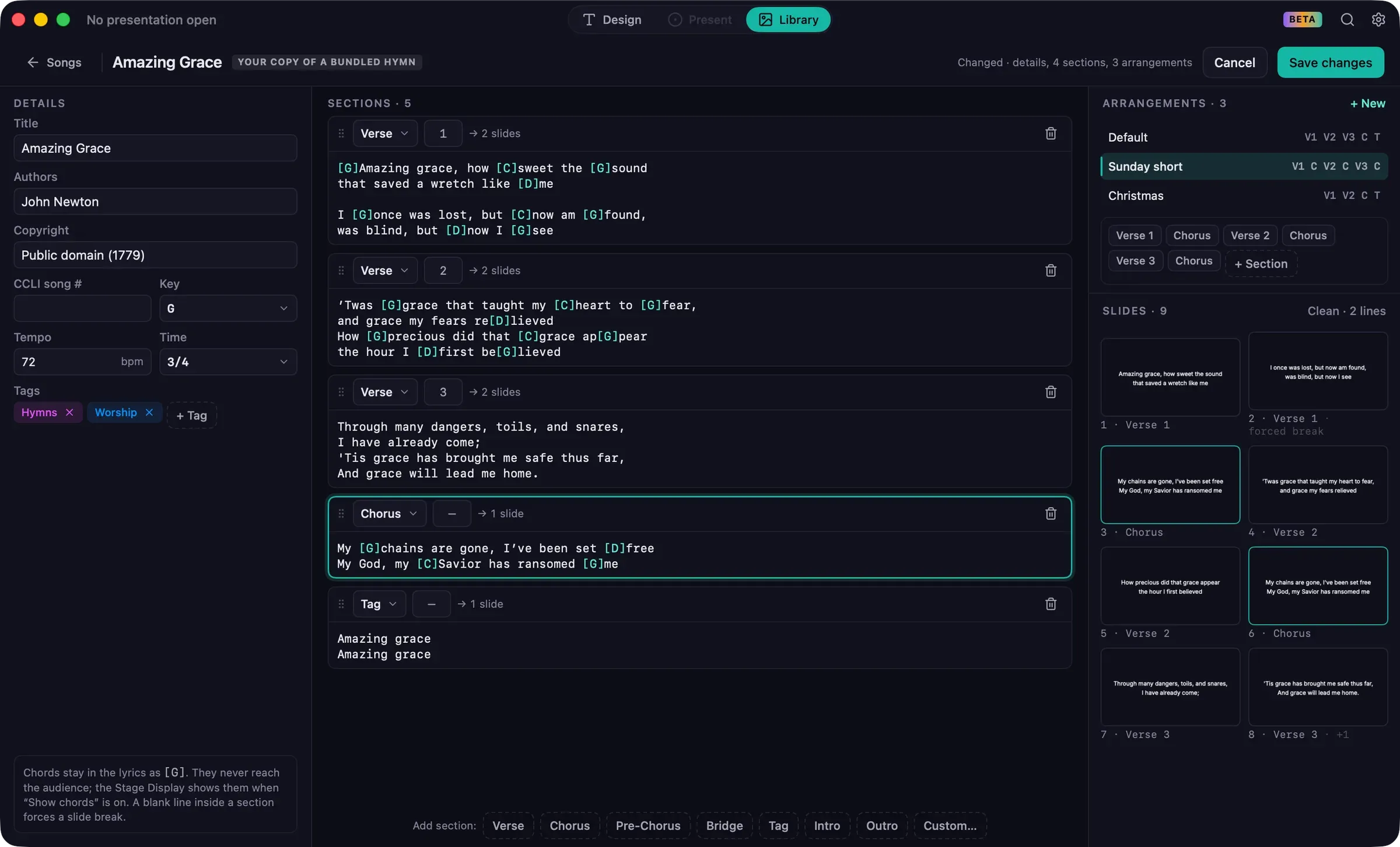
The editor has three columns.
Details
Section titled “Details”Title (required), Authors (separated by commas), Copyright, CCLI song #, Key, Tempo (in BPM), Time signature, and Tags.
The title, authors, copyright and CCLI number are used for the copyright line on slides. See Copyright and CCLI.
Sections
Section titled “Sections”Each section has a label, a number, and a box for its lyrics.
- Add a section with the buttons at the bottom: Verse, Chorus, Pre-Chorus, Bridge, Tag, Intro, Outro, or Custom… for any other label, such as “Vamp”. Interlude and Ending are in each section’s label menu.
- Numbers are assigned automatically. Type in the number field to change one.
- Drag sections to reorder them. Click the trash button to delete one.
- Each section shows how many slides it will make, such as “→ 2 slides”.
A blank line inside a section’s lyrics forces a new slide at that point.
Chords
Section titled “Chords”Write chords inline, in square brackets, right before the syllable they belong to:
[G]Amazing [C]grace, how [G]sweet the soundChords are never shown on audience screens. They appear above the lyrics on the Stage Display when Chords above lyrics is turned on.
Arrangements
Section titled “Arrangements”An arrangement is the order the sections are sung in. Every song has a Default arrangement, and new sections are added to the end of it automatically.
- Click + New to add a named arrangement, such as “Sunday short” or “Christmas”.
- Select an arrangement to edit its order. Click + Section to add a section to the end (a section can appear more than once), drag chips to reorder, and click a chip to remove it.
- Right-click a named arrangement to Rename… or Delete it.
You can also adjust an arrangement while adding a song, and save the change from the Song picker. See Songs.
Slide preview
Section titled “Slide preview”Slides shows how the song will split into slides with the current presentation’s theme (or Clean, when no presentation is open), including forced breaks.
Saving
Section titled “Saving”Click Save changes. The header summarizes what changed, for example “Changed · details, 2 sections, 1 arrangement”. If you click Cancel after making changes, Guidepost asks before discarding them.
Changing a song in the Library doesn’t change presentations that already use it. To update a presentation, add the song again.
Other song actions
Section titled “Other song actions”Select a song to see its details, arrangements and sections on the right, and how often it’s been used. From there, or by right-clicking:
- Add to presentation
- Edit
- Duplicate: makes a copy named “Title copy”, with the same tags.
- Export: saves the song as a ChordPro or OpenLyrics file, to use in other apps or on another Mac.
- Add to Favorites
- Delete
Press Space to preview a song’s lyrics without opening it.