

Settings
Open Settings with ⌘,, the gear in the title bar, or Guidepost › Settings…. Changes apply immediately. Press Esc to close.
To find a setting, type in Search settings at the top of the sidebar. You can also find settings with Search (⌘K) in the main window.
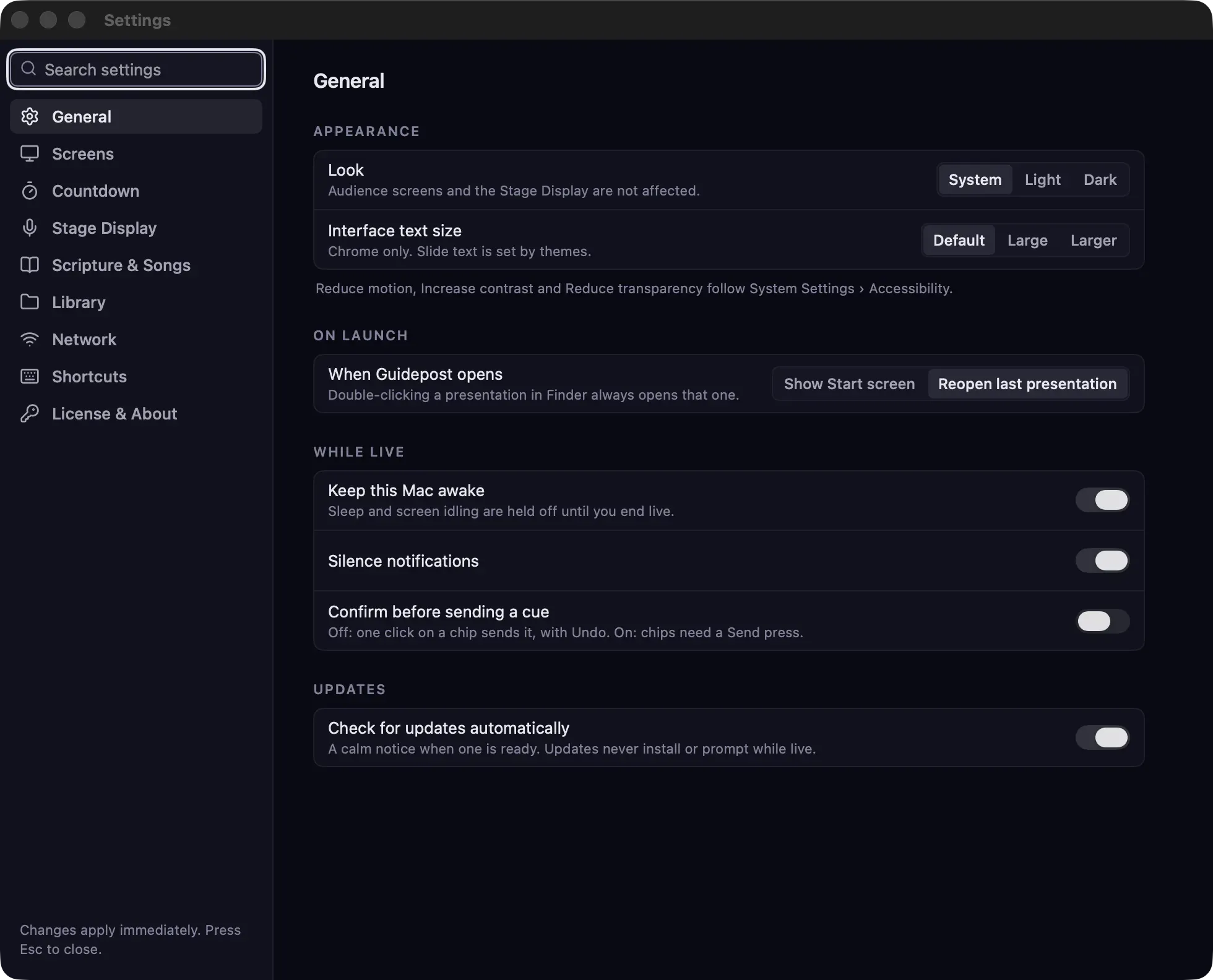
General
Section titled “General”| Setting | What it does |
|---|---|
| Look | System, Light or Dark, for Guidepost’s own window. Audience screens and the Stage Display aren’t affected. |
| Interface text size | Default, Large or Larger, for Guidepost’s controls. Slide text is set by themes. |
| When Guidepost opens | Show Start screen or Reopen last presentation (the default). |
| Keep this Mac awake | Prevents sleep and screen idling while live. On by default. |
| Silence notifications | Turns on Do Not Disturb while live. Needs a one-time setup; see Silencing notifications. |
| Confirm before sending a cue | When on, clicking a cue chip fills in the text and you click Send. When off, one click sends it, with Undo. |
| Check for updates automatically | On by default. See Updates. |
Reduce motion, Increase contrast and Reduce transparency follow System Settings › Accessibility.
Screens
Section titled “Screens”The Screens panel, plus:
- Logo: the image for the Logo hold and the idle screen, and its background color.
- When nothing is live, audience screens show: Logo, Black or Wordmark.
- Default transition: the crossfade length in milliseconds. Themes and slides can override it.
- Ask before going live with no audience screen.
Countdown
Section titled “Countdown”- Duration and At zero (Go Live, Hold at 0:00, Show Logo): the defaults for the countdown.
- Text color and Background: by default, these come from the presentation’s theme. A preview shows the result.
- Announcement loop: whether saved slides rotate beside the countdown, how often they change, and which slides to use by default.
Stage Display
Section titled “Stage Display”Choose what appears on the Stage Display, adjust its appearance, and manage saved cues and speaker timer presets.
Scripture & Songs
Section titled “Scripture & Songs”- Bibles: installed translations, the default translation, Add translation… and Remove. See Bibles and translations.
- First slide: Verse or Passage title card, the default for new passages.
- Long verses: Shrink to fit or Split across slides.
- Smallest text size: the smallest size a long verse is shrunk to.
- Lines per slide for songs: 2 or 4.
- Copyright display: see Copyright and CCLI.
Library
Section titled “Library”- Where the Library is stored, how much space it uses, and Show in Finder.
- Recently deleted, with Empty now….
- Convert videos the Mac can’t play natively: converts WebM, MKV, AVI and similar files in the background. On by default.
- Warn about large files: Over 500 MB, 1 GB (the default), 2 GB or 4 GB, or Never.
- Offer to add media from presentations made on other Macs.
Network
Section titled “Network”The status and address for network viewers, help if viewers can’t connect, and advanced options: Port, Start when Guidepost opens and Turn off when I end live. The on/off switch is in the Screens panel.
Shortcuts
Section titled “Shortcuts”Every action and its keys, grouped by Everywhere, Present and Design. See Keyboard shortcuts.
License & About
Section titled “License & About”- License: your license status, with Enter license key and Buy a license, or, once licensed, Refresh license and Deactivate this computer…. See Licensing and the beta.
- About: the version, What’s New and Check for app updates.
- Help and support: links to this help, keyboard shortcuts, AirPlay help, the sample service, support, and feedback.