

A tour of the window
Guidepost has one main window. One presentation is open at a time, and it holds the whole service.
Three workspaces
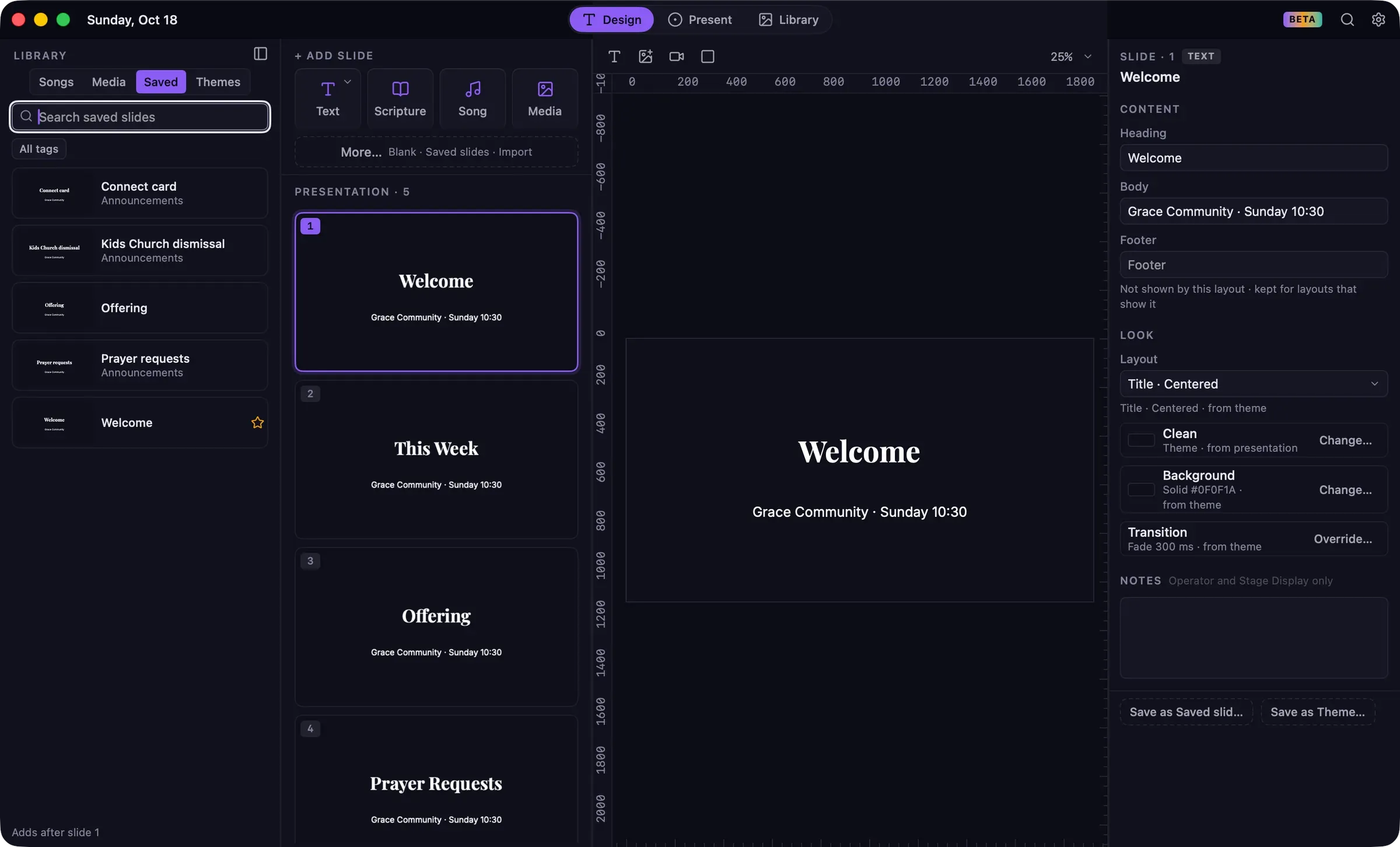
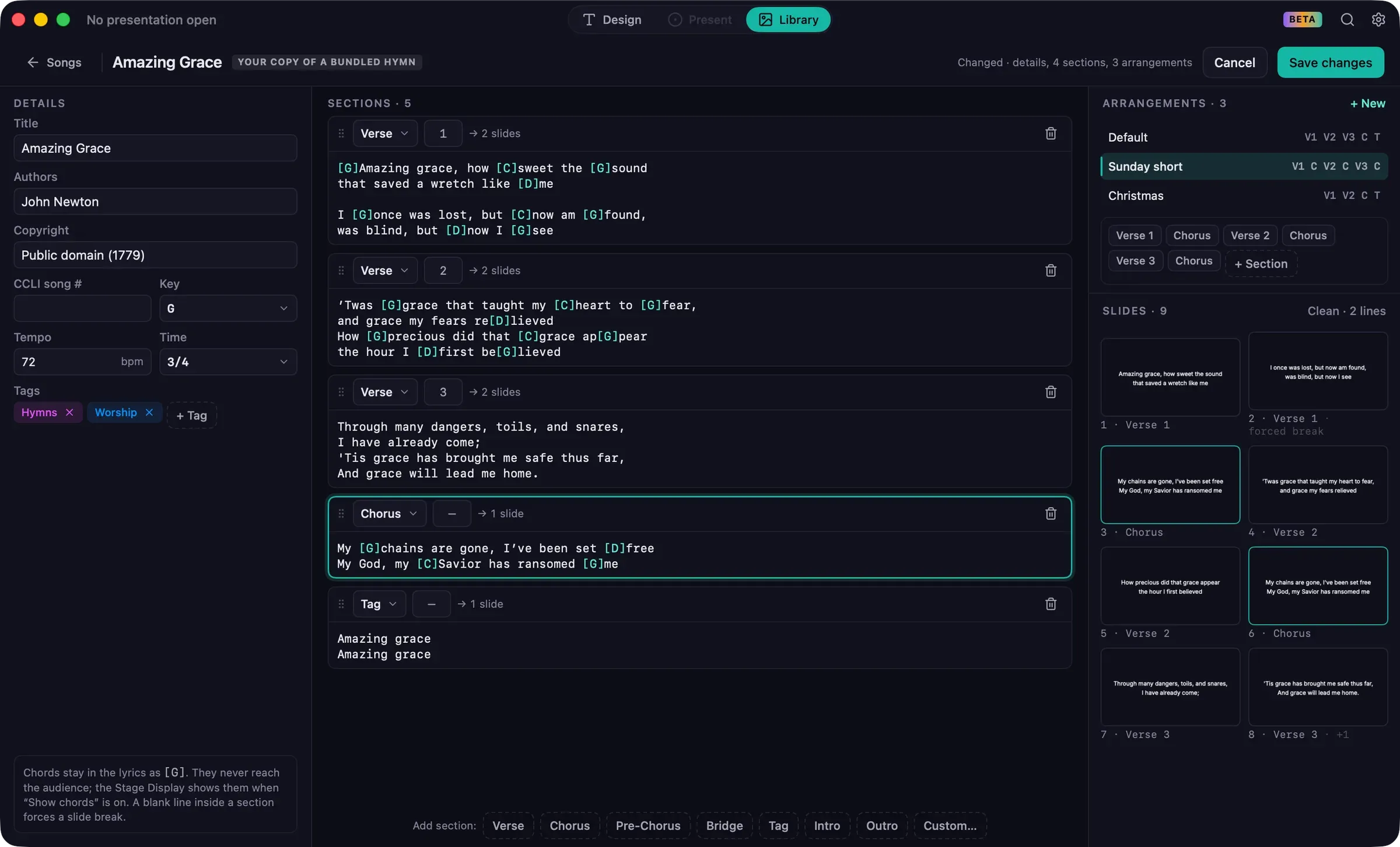
Section titled “Three workspaces”The switcher in the middle of the title bar moves between three workspaces. Each workspace has its own accent color.
| Workspace | What it’s for | Shortcut |
|---|---|---|
| Design | Build and edit the presentation: add slides, arrange them, choose how they look. | ⌘1 |
| Present | Run the service live: go live, move through slides, blank the screen, show messages. | ⌘2 |
| Library | Manage songs, media, themes, saved slides and Bibles that every presentation can use. | ⌘3 |
Present is available once a presentation is open.
The title bar
Section titled “The title bar”- Left: the presentation’s name. A dot beside it means there are unsaved changes. Click the name to rename the presentation.
- Center: the workspace switcher.
- Right:
- a license status badge, such as Beta;
- an activity indicator during tasks such as importing a video. Click it to see progress or cancel;
- Search (⌘K), which finds slides, songs, scripture, media, commands and settings. See Search;
- Settings (⌘,).
The Live bar
Section titled “The Live bar”While a service is live, a slim amber bar appears under the title bar in Design and Library. It shows what the audience sees, the slide’s name, and how long you’ve been live, with Prev, Next, Blank and Return to Present. You can keep working in Design or Library without losing track of the service. See Changing the service while live.
Notifications
Section titled “Notifications”Notices appear in the corner of the window after an action. Some include a button such as Undo or Show. Errors stay until you dismiss them; other notices fade on their own.
Problems that need attention while live, such as a disconnected projector, appear as a banner that stays until the problem is resolved or you dismiss it.
Every action in Guidepost is also in the menu bar:
- File: New, Open, Open Recent, Save, Save As, Close Presentation, Rename.
- Edit: Undo and Redo (with a description of what will change), Duplicate, Copy Style and Paste Style, Group and Ungroup, Skip in Present, and the Arrange submenu for layers.
- Format and Insert: text styling and new layers on the canvas.
- View: the three workspaces, Search, the Library drawer, rulers, grid, snap and zoom.
- Presentation: adding slides, Go Live and End Live, Blank, Logo, Freeze, Clear Text, slide navigation, Message, Send Cue, video controls, and Screens….
- Help: help topics, keyboard shortcuts, the sample service, and ways to contact support.
Settings
Section titled “Settings”Settings opens in its own window with ⌘, or the gear in the title bar. Changes apply immediately. Press Esc to close it. Use the search field at the top of the sidebar to find any setting by name. See Settings for every page.