

Going live
Before you go live
Section titled “Before you go live”At the bottom of the control rack, under the GO LIVE button, the readiness line shows where the slides will go and which slide the service starts on, for example:
→ Epson Projector + Sanctuary TV (AirPlay) + Stage Display + 3 viewers · starts at slide 1
If something needs attention, it’s listed below, with a link to fix it:
| Message | What to do |
|---|---|
| No audience screen selected | Open the Screens panel and turn on a screen. See The Screens panel. |
| Sanctuary TV (AirPlay) not connected | Click Show me how and connect the TV from Control Center. See AirPlay TVs. |
| Sanctuary TV is mirroring your screen | Click Fix and switch the TV to an extended display. |
| 2 missing media items | Replace the missing files in Design. See Missing media. |
| License required | See Licensing and the beta. |
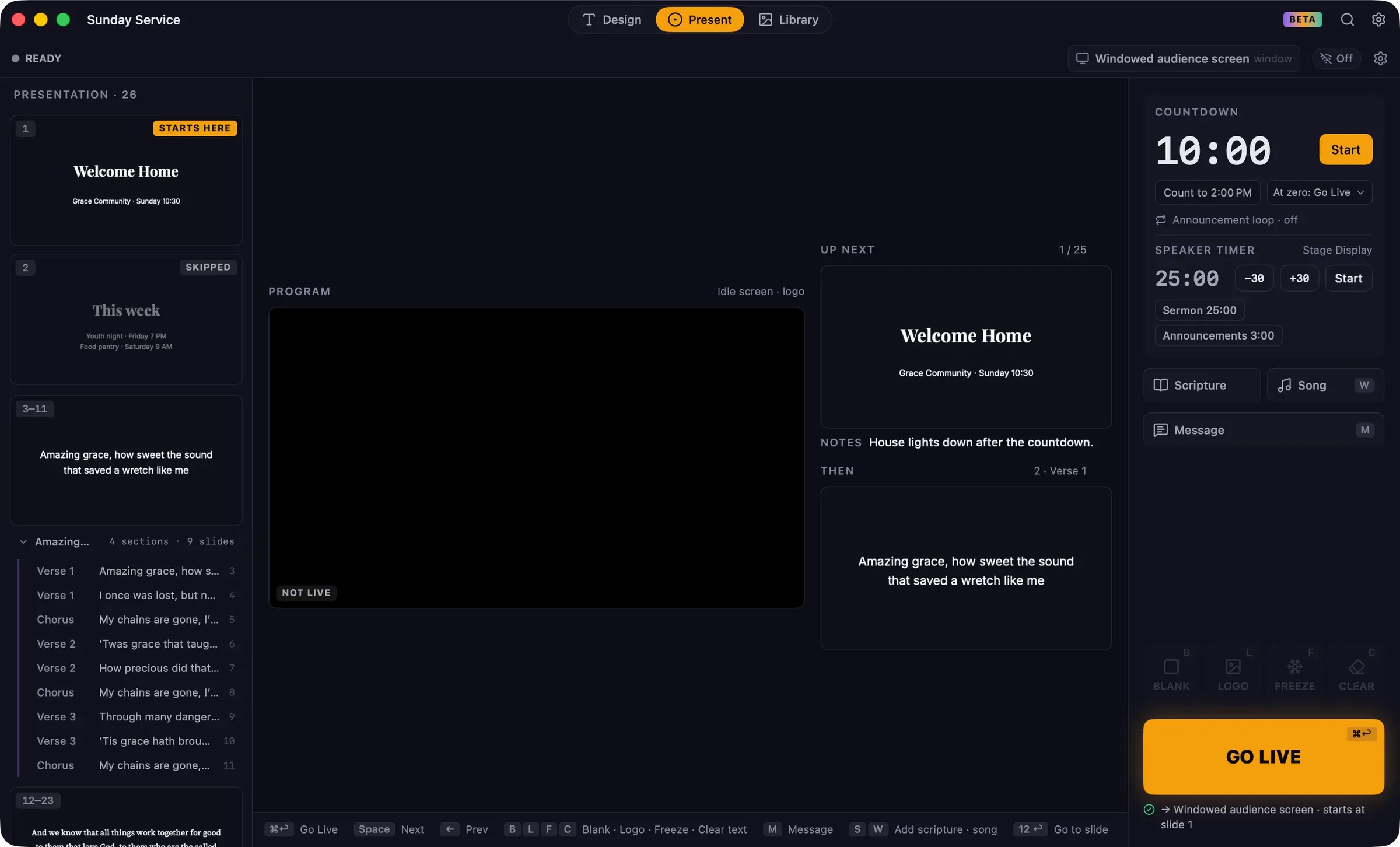
Before going live you can click slides, or use the navigation keys, to choose where the service starts. Nothing appears on the audience screens until you go live. The slide marked Starts here is the one that will be shown first.
Go live
Section titled “Go live”Click GO LIVE or press ⌘Return. ⌘Return works from any workspace. A presenter clicker’s “start slideshow” button also goes live.
The audience screens open and show the starting slide with the theme’s transition. The rack’s big button becomes NEXT.
If Guidepost asks a question first
Section titled “If Guidepost asks a question first”You may see one of these prompts before going live:
- This presentation has no slides (or Every slide is skipped): click Go to Design to add or turn on slides.
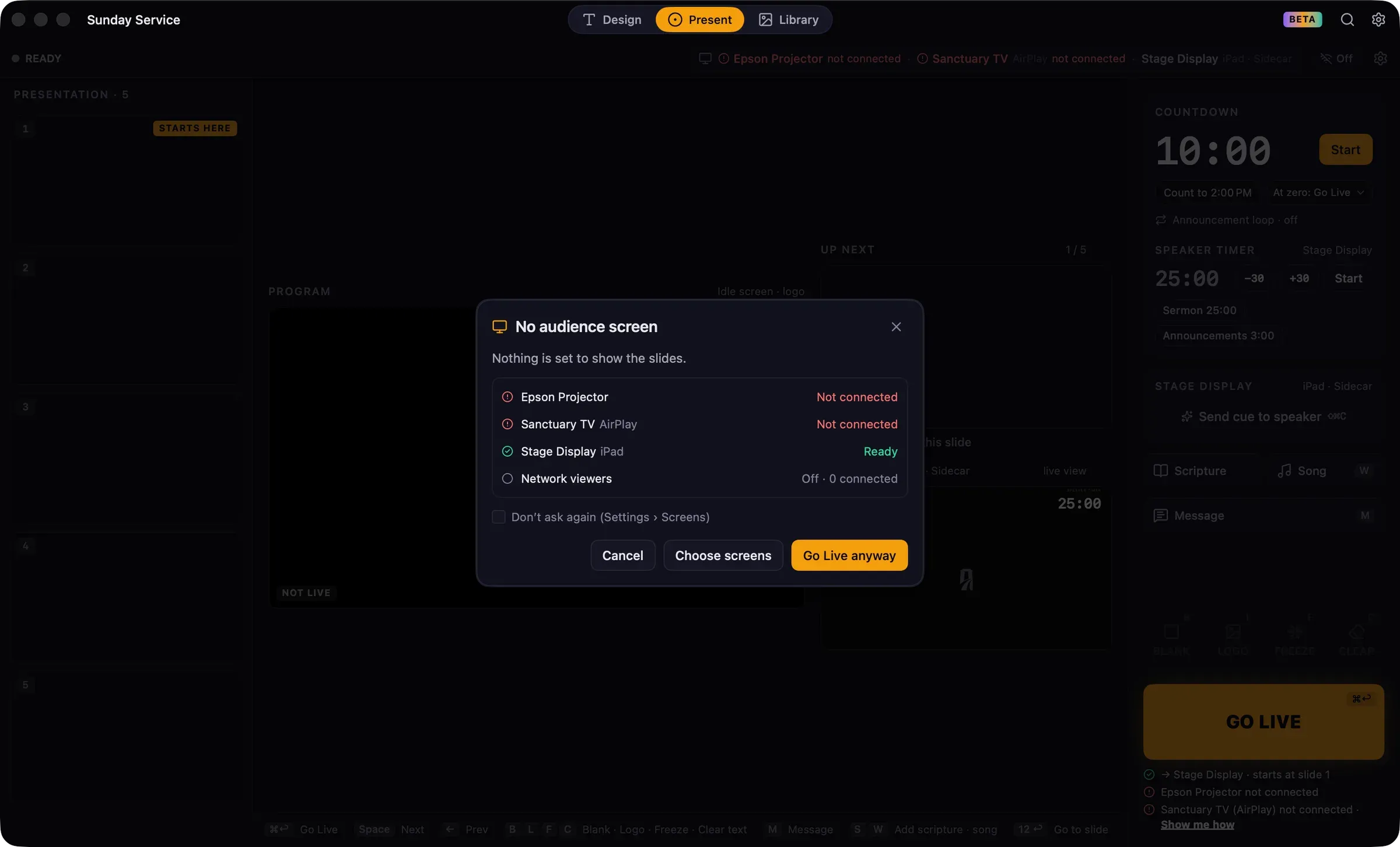
- No audience screen: nothing is set to show the slides. The dialog lists each screen’s status. Click Choose screens to open the Screens panel, or Go Live anyway to go live for the Stage Display and network viewers only. Select Don’t ask again to skip this question in future; you can turn it back on in Settings › Screens.
- Only your screen is connected: choose Use a windowed audience screen to show the slides in a resizable window, or Network viewers only. The choice lasts until you quit Guidepost.
- Media items are missing: the dialog lists each missing file and where it’s used. Click Fix now to go to the first affected slide, or Go Live anyway.
While live
Section titled “While live”- Guidepost keeps your Mac awake. You can turn this off in Settings › General.
- Guidepost can also silence notifications during the service. See Silencing notifications.
- If you switch to Design or Library, the Live bar keeps the service in view.
- Opening, closing or creating a presentation, or quitting Guidepost, first asks whether to end the service.
- App updates never install or ask for attention while you’re live.
End live
Section titled “End live”Press Esc in Present, click End Live in the Timers module, or choose Presentation › End Live. Confirm End live.
When the service ends:
- the audience screens close;
- the Stage Display and network viewers return to the idle screen;
- any hold, message or cue is cleared, as are this run’s song repeats and skips;
- the presentation stays open, and the slide you were on is marked Starts here.