

The Design workspace
Design (⌘1) is where you build a presentation. It has four areas, left to right.
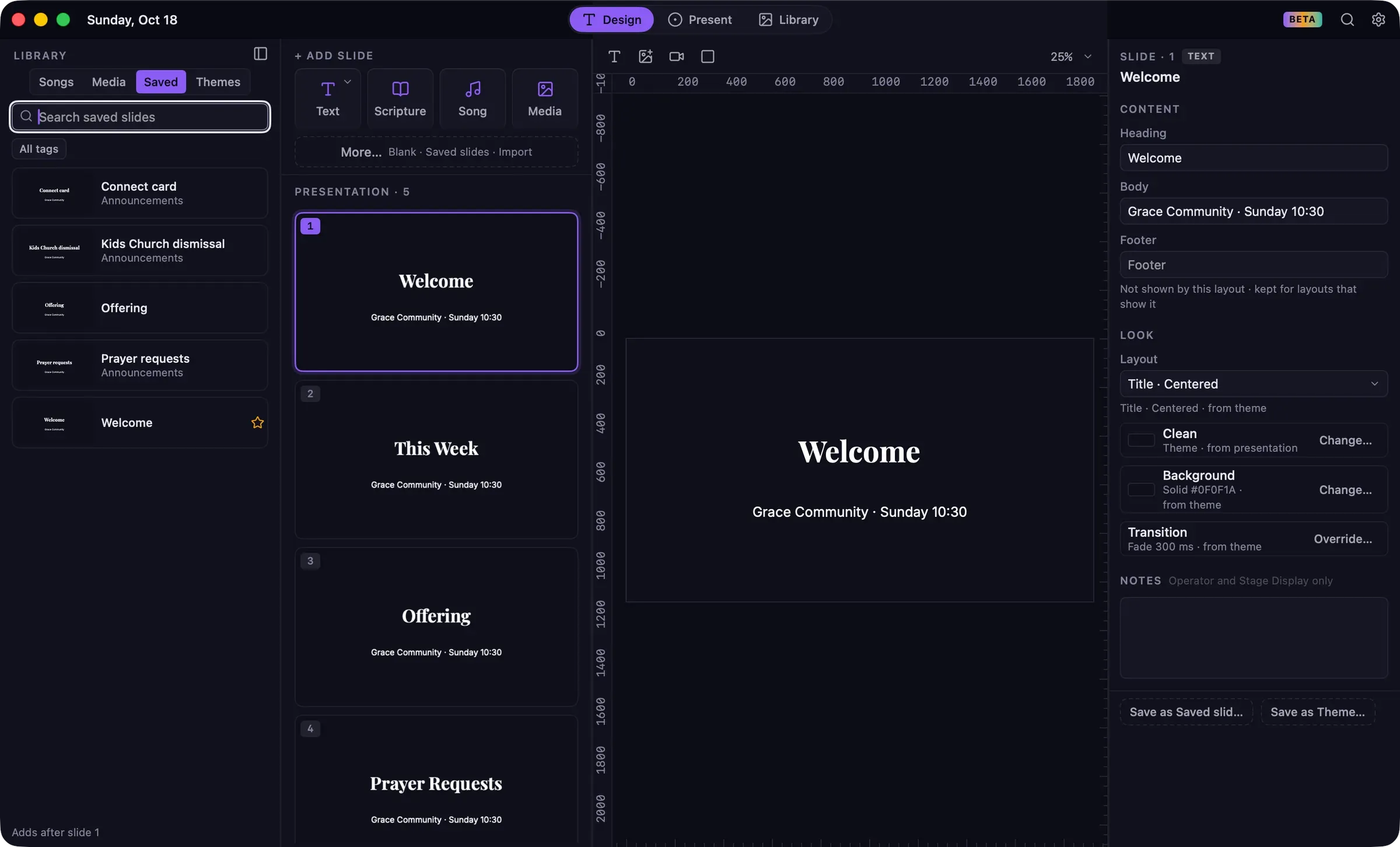
Library drawer
Section titled “Library drawer”A collapsible panel with your Library’s Songs, Media, Saved slides and Themes, so you can add content without leaving Design. It’s hidden at first. To show it, click the Library strip on the left edge, or choose View › Show Library Drawer (⌥⌘L).
- Double-click an item to add it. The line at the bottom says where it will go, for example “Adds after slide 4”.
- Drag an item into the slide list to place it exactly, or drag an image or video onto the canvas to add it as a layer on the current slide.
- On the Themes tab, double-click a theme to apply it to the presentation, or to the selected slide’s group.
Slide list
Section titled “Slide list”The slides in order, with live thumbnails. Above them, the + Add slide row adds new slides. See Slides and groups and Adding slides.
Canvas
Section titled “Canvas”The selected slide at full size, where you edit text and move, resize and rotate layers. The toolbar above the canvas changes with what’s selected: with nothing selected it adds layers; with a text layer selected it shows font, size, style, alignment and color. See Editing on the canvas.
Inspector
Section titled “Inspector”The inspector shows settings for the selected presentation, slide or layer:
- Nothing selected: the presentation’s name, its Theme and its Default transition. Click Presentation above the slide list to get here.
- A slide: its Content (the text, passage, song section or media), its Look (layout, theme, background, transition) and its Notes. Buttons at the bottom save the slide as a saved slide or a theme.
- A layer: the list of layers on the slide, and tabs for the layer’s Content, Style and Position.
Drag the thin lines between areas to resize them.
Keyboard focus
Section titled “Keyboard focus”Shortcuts act on whichever area has focus. When the slide list has focus, Delete, ⌘D, copy and paste act on slides. When the canvas has focus, they act on layers. The focused area is outlined.